


RandomCoffee Help Center
Type to search documentation.

How RandomCoffee works

What to expect as a participant, from joining RandomCoffee to meeting your matches, by email, Slack or Microsoft Teams.

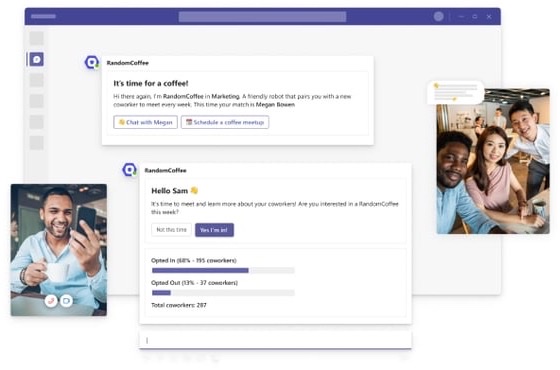
RandomCoffee helps you build connections across your organization by matching you with colleagues for virtual or in-person meetings, often over a coffee. Organizations use it for many reasons, but they all share one goal: open up new opportunities for each of you.

What to expect as a participant

  1. Join RandomCoffee.

    Depending on how your admin set up the account, you are added to RandomCoffee automatically, or you join by filling in a form shared by your admin.

    When your admin adds you, they can send you a welcome email. In Slack and Microsoft Teams, the RandomCoffee bot also welcomes you (see below).

  2. Receive an invitation or a match.

    Your admin can invite you to several programs, when the audience of a program matches your profile. When a session is planned for a program, what you receive depends on the participation type your admin chose:

    • “Ask for participation”: you first receive an opt-in message asking whether you want to join the next session. If you accept, you later receive a match message with the details of your match or matches.
    • “Automatic participation”: you receive the match message directly, on a date set by your admin.

    Your admin can also mix both: only some members are asked to opt in, and all the others are matched automatically.

  3. Schedule your coffee.

    It is up to you to schedule the meeting with your match or matches, ideally within a week.

  4. Meet.

    Meet your match or matches, virtually or in person, and enjoy the conversation.

Not sure how to start the conversation? Try our conversation starters.

What you receive on each channel

Depending on your admin’s configuration, RandomCoffee messages reach you by email, Slack or Microsoft Teams. Choose your channel below.

Welcome email

When your admin adds you to RandomCoffee, they can choose to send you a welcome email. Its content depends on whether your admin gave members access to the Member Portal.

If Member Portal access is on, the email invites you to create your RandomCoffee account:

  1. In the email, click “Get started”.

  2. Choose your password and confirm it. It must contain at least 12 characters, with one lowercase letter, one uppercase letter, one number and one special character.

  3. Click “Set new password”. Once your password is saved, follow the link to log in.

You can now use your Member Portal. The first time you sign in, you also receive a second email that welcomes you to it. If you have not signed in a day after the invitation, a reminder email is sent to you.

If Member Portal access is off, the welcome email simply presents the RandomCoffee initiative:

Opt-in email

When a program asks for participation, you receive an opt-in email before each session. Use the buttons in the email to accept or decline.

  • If you accept, a confirmation page tells you that you will soon receive an introduction with your new match. In some workspaces, the page first asks you to click “Confirm availability”. When the program has a registration form, the page also invites you to fill it in with “Tell us about yourself”, so that RandomCoffee can find you the best match.
  • If you decline, a page asks why you could not make it this time. Answering is optional. If you change your mind, click “No, I still want to participate in this session ❤️”.

When you have access to the Member Portal, these pages also link to “My connections history”, “My preferences”, “My profile” and “Snooze”.

Match email

The match email introduces the members of your group, with their names and email addresses. Get in touch with them to choose a day and time for your coffee, ideally within a week.