

Remove members
Remove one or several members from your workspace, from the member list or with a file, and understand what removing deletes.
Removing members cannot be undone. For a member who only belongs to your workspace:
- Their account is deleted: their name and email address are erased, and their Member Portal disappears.
- Their matching history is lost. If you add them again later, they start from scratch: the algorithm may match them with the same people again, and they need to reset their password and set their preferences and availabilities again.
- Your reports change: the reports you download from your dashboard (match reports…) no longer show their name or email address, and your statistics are affected.
To keep a member’s history, deactivate them instead.
If a member also belongs to another RandomCoffee workspace, their account is not deleted: it is kept for the other workspace, and they are only removed from yours.
Remove members from the list
Use this method for one member, or for a group of members you can find with the filters.
-
Select the members.
In “People” > “All members”, find the members (search or filter the list), then tick the box next to each name. To select every member that matches your filters, tick the box at the top of the list, then click “Select all members”.
-
Open the “Actions” menu and click “Remove members”.
-
Confirm with “Yes, I’m sure”.
The confirmation window shows how many members will be removed.
You cannot remove yourself. If “Remove members” is greyed out, your admin permissions do not include it.
Remove many members with a file
When the members to remove are hard to find with the filters, mark them in a file.
-
Export your member list.
In “People” > “All members”, tick the box at the top of the list, click “Select all members”, then open the “Actions” menu and click “Export in .xls”. Your member list is sent to you by email.
-
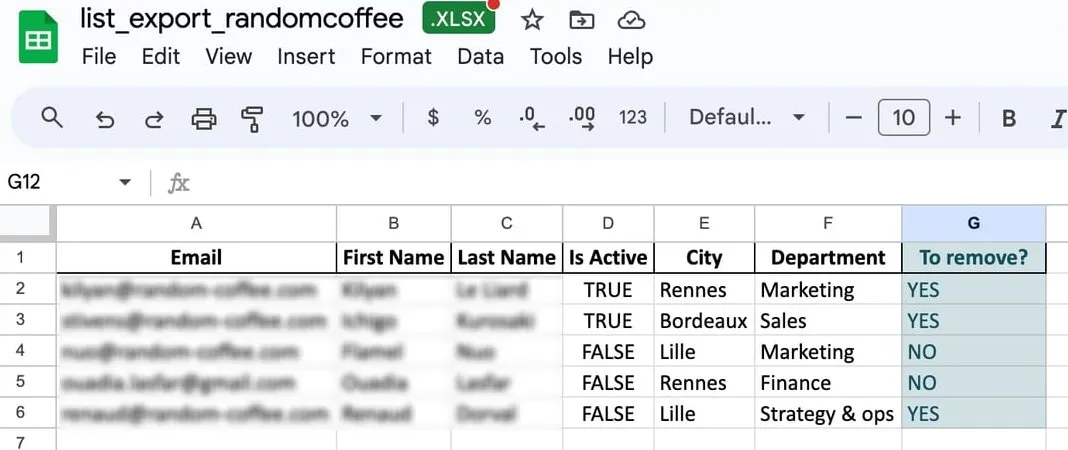
Add a column called “To remove?”.
For each member, write “YES” if you want to remove them, or “NO”.
-
Save your file in CSV format.
-
Upload the file.
Click “Add new members”, stay on the “Upload a member list” tab and upload your file (see Add members with a CSV file).
-
Create a “To remove?” category.
When you map the columns, choose “Create a new category” for the “To remove?” column, with the type “Dropdown: list of options to choose from”.
Make sure “Send a welcome email (optional)” is turned off, then click “Continue”.
-
Filter your member list.
Once the file is processed, go back to “People” > “All members”. In the filters at the top of the list, click “Add filter”, choose “To remove?” and the value “YES”, then click “Search”.
-
Select all the members shown and remove them.
Tick the box at the top of the list, click “Select all members”, then open the “Actions” menu, click “Remove members” and confirm.