

Personalize opt-in and match messages
Customize the opt-in and match messages of a program, by email or as Slack and Microsoft Teams cards, with your own text, branding and variables.
Each program sends two kinds of messages to its members: an opt-in message, which asks them if they want to take part in the next session, and a match message, which introduces them to their match. You can rewrite both to fit your tone, your branding and your program.
Which messages your members receive
The messages depend on the “Type of participation” of the program (in “Settings” > “Matchmaking”):
- “Ask for participation” or “Ask for participation - specific people only”: members first receive the opt-in message, then the match message if they accepted. You can customize both.
- “Automatic participation”: members are matched directly and only receive the match message. The opt-in message is not shown.
They are sent on the channel chosen in “Communication Channel”: as emails, or as cards in Slack or Microsoft Teams. See Create a program to choose these settings.
Open the messages of a program
- Open your program and go to the “Settings” tab.
- Select the “Communication” section.
- Below “Communication Channel”, you find the messages of the channel you chose.
Customize your messages
Under “Program emails”, each email has its own line: “Opt-in” (only when you ask for participation) and “Match email”. Each line has three icons:
- “Preview”: shows the current email below the line;
- “Send test email”: sends the email to your own address (see Send a test email);
- “Customize”: opens the email editor.
- Click “Customize” on the email you want to change. The “Edit Email Template” page opens.
- Check the sender in “From:” and write the subject in “Subject:”.
- Edit the body of the email: text, logo, blocks, buttons and merge tags. The sections below explain each one.
- When the status at the top shows “Your template is good”, click “Save & Exit”.
If an email has no “Customize” icon, it uses a custom template that cannot be edited in the app. Contact support@random-coffee.com to change it.
Slack messages are cards that you edit directly in the “Communication” section. If you ask for participation, choose the card to edit at the top: “Opt-in Card” or “Match Card”.
The editor uses Markdown formatting (see the Markdown basic syntax). With its toolbar, you can:
- add headings, bold, italic and lists to structure your text;
- add links with the link button (“Add link”), including links to a variable such as
{{schedule_meeting_link}}; - insert variables with “Insert variables” (first name, company name, program name, booking link, members of the group and more, see Merge tags).
You can also type or paste emojis that fit your culture directly in the text.
The icon on the right of the toolbar shows if the card is valid: a green check (“Your template is ok”) or a red cross that lists the errors. Click the eye icon (“Preview”) to see the card as your members will receive it.
 RandomCoffee
You do not need to add the participation buttons: the opt-in card always ends with a “Yes, I’m in” button and a “Not this round” button.
Click “Save” at the top of the program page to save your changes.
Microsoft Teams messages are cards that you edit directly in the “Communication” section. If you ask for participation, choose the card to edit at the top: “Opt-in Card” or “Match Card”.
The editor uses Markdown formatting (see the Markdown basic syntax). With its toolbar, you can:
- add headings, bold, italic and lists to structure your text;
- add links with the link button (“Add link”), including links to a variable such as
{{schedule_meeting_link}}; - insert variables with “Insert variables” (first name, company name, program name, booking link, members of the group and more, see Merge tags). In Microsoft Teams, you also get “Schedule a meeting link (on MS Teams)”, “Chat link (on MS Teams)” and “Video call link (on MS Teams)”.
You can also type or paste emojis that fit your culture directly in the text.
The icon on the right of the toolbar shows if the card is valid: a green check (“Your template is ok”) or a red cross that lists the errors. Click the eye icon (“Preview”) to see the card as your members will receive it.
RandomCoffee adds its own elements around your text:
- the opt-in card always ends with a ”✅ Yes, I’m in” button and a “⛔️ Not this time, sorry” button;
- the match card shows ”👤 Your group members”, then three buttons: ”📅 Schedule your meetup”, ”💬 Start a chat” and ”📞 Start a call”.
Click “Save” at the top of the program page to save your changes.
If members see the error “This bot is disabled. Contact your IT admin for more information.” when they click a button of the card, the RandomCoffee app is not correctly installed or allowed for them in your Teams environment. Share the Teams admin center troubleshooting with your IT team.
Edit an email template
This section only applies to programs sent by email.
Sender
By default, emails are sent by “RandomCoffee” <juliette@random-coffee.com>. To send them from your own address, choose another sender in “From:”. The list shows the addresses of your verified sending domains: add one first in Custom sending domain and SMTP server.
The sender cannot be changed on the Free plan.
The “To:” line shows {{coworkers}}: RandomCoffee fills in the recipients. You cannot change it.
Subject
The subject is required: you cannot save an email without one. It can contain {{company_name}} and {{campaign_name}} (the program name), and also {{first_name}} in the opt-in email.
People open emails with a catchy subject line. To catch their attention, you can:
- personalize the subject (in the opt-in email, add the recipient’s first name);
- use emojis (for example, “Would you like to meet with a colleague informally and just for fun? 😀”);
- ask a question (for example, “[First Name], would you like to chit-chat with a new colleague?”);
- use power words (Ready, Save the date, Learn, Change, Engage…).
Opt-in buttons
The opt-in email must contain the link to accept the session, or it cannot be saved. Point the opt-in buttons or links to these variables:
- the “Yes, I’m in” button or link (to take part in the session):
{{request_link}}, required; - the “No, thanks” button or link (to skip the session):
{{reject_link}}, so that members can decline in one click.
Members of the group in the match email
The match email introduces the members of each group with a loop that repeats a block for each member:

{% for coworker in coworkers %}{{coworker.full_name}} ({{coworker.email}}){% endfor %}This is the loop of the default match email: it shows the full name and email of each member. Keep it, and add details inside it if you want, for example the value of a category for each member (see Merge tags). Tags that start with coworker. only work inside the loop.
The match email must show the first name of each member of the group, with “First Names” ({{first_names}}) or with the loop. Otherwise, the editor shows an error, and RandomCoffee does not send a match email where a member’s first name is missing.
Your own logo
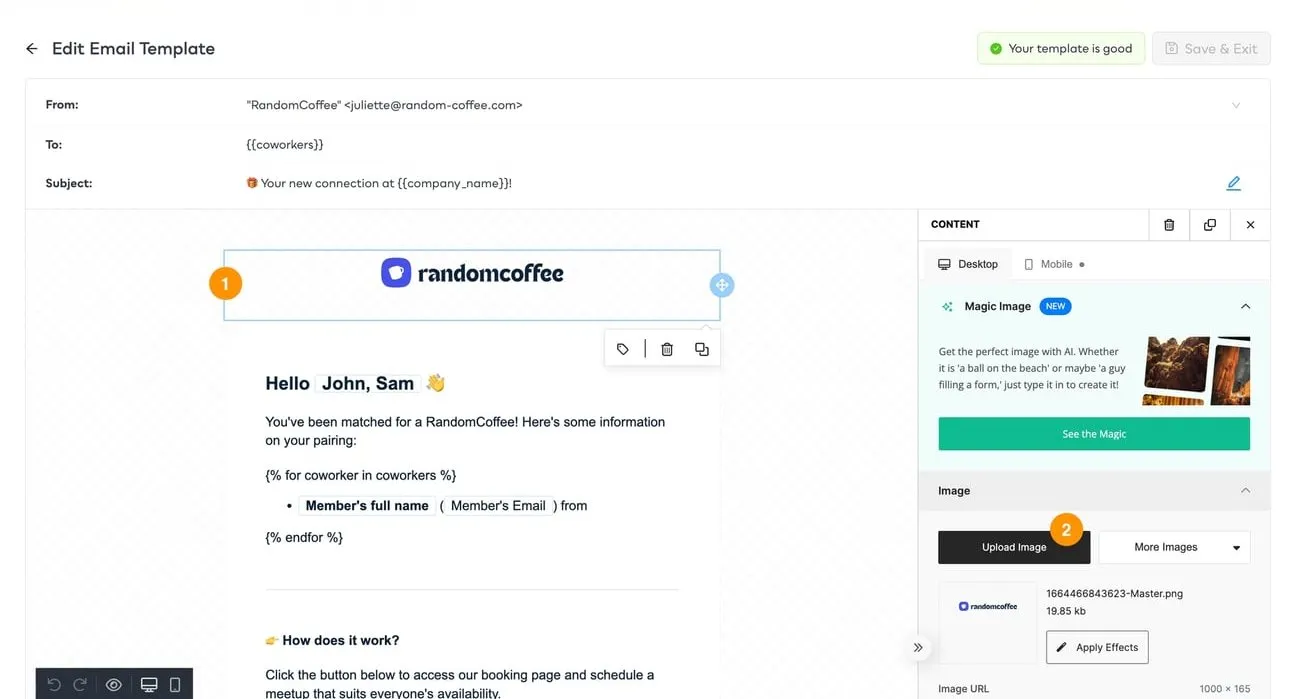
Click the RandomCoffee logo at the top of the email, then click “Upload Image” in the right panel. Your logo replaces it.
Blocks and content
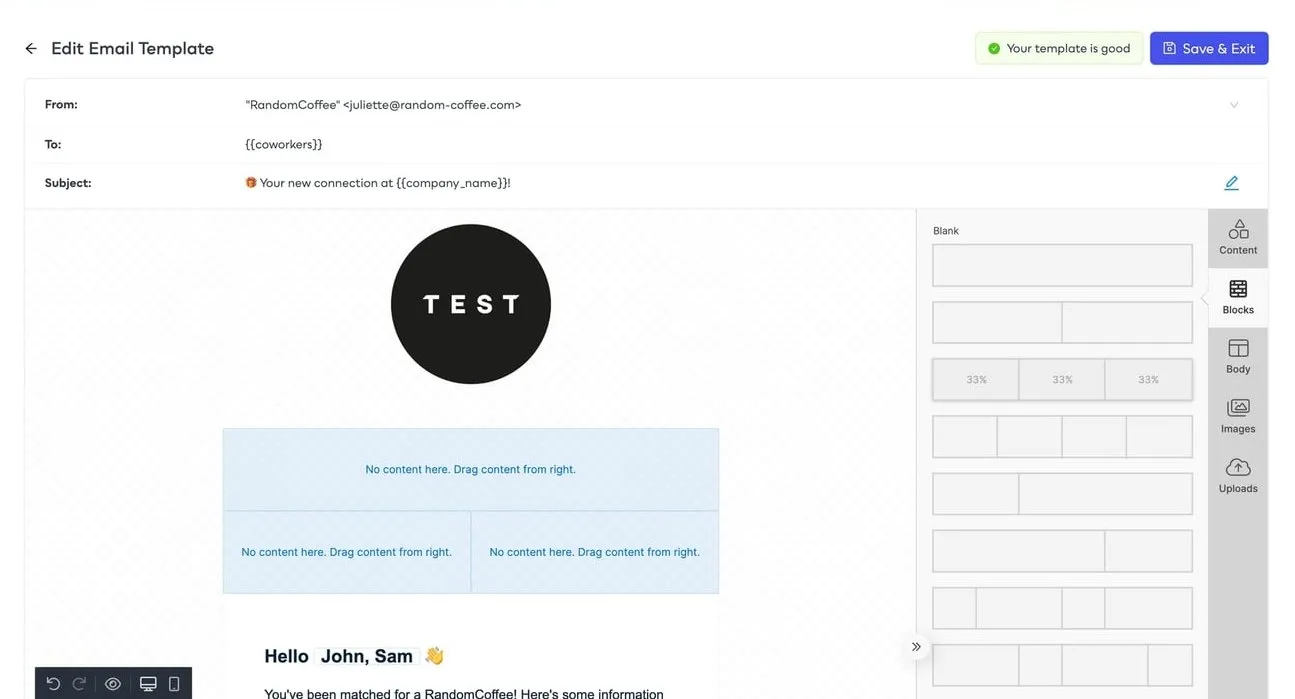
Drag and drop new blocks from the “Blocks” menu, for example a block split in two columns with text on the left and an image on the right. Then drag and drop your content into them from the “Content” menu.
Buttons
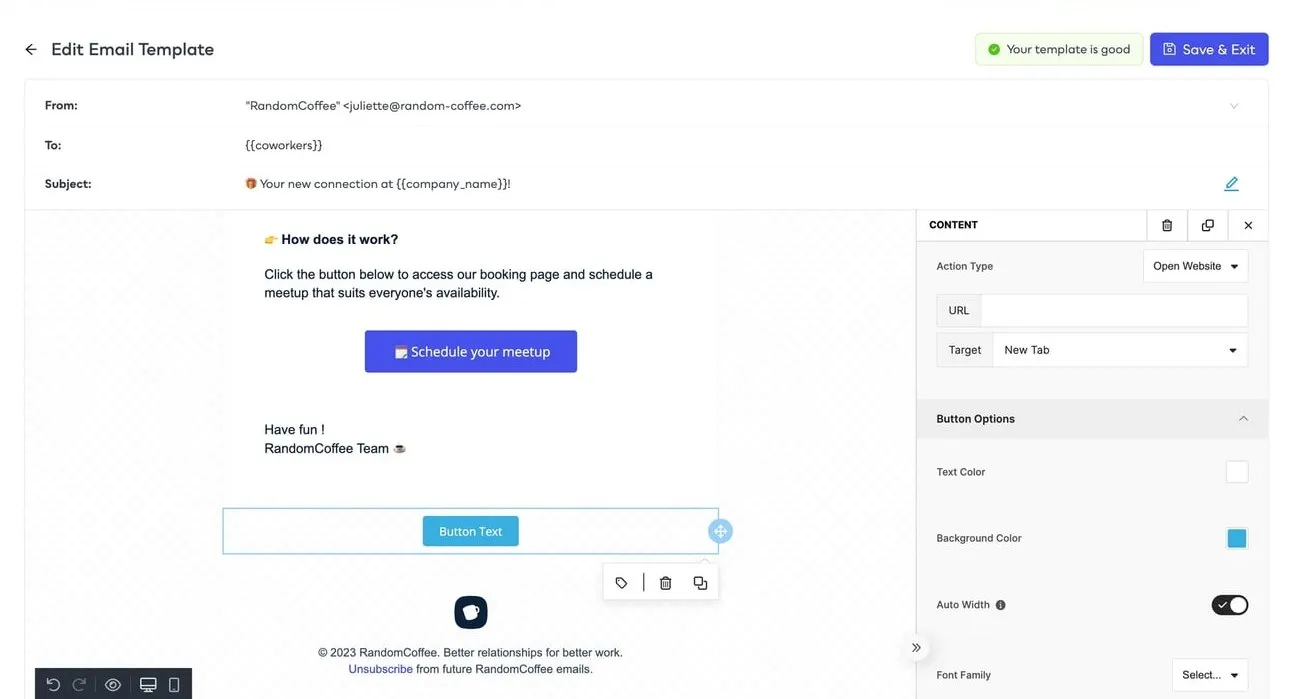
Drag and drop the “Button” content from the “Content” menu. Then click your button to customize its text, colors and link.
Merge tags
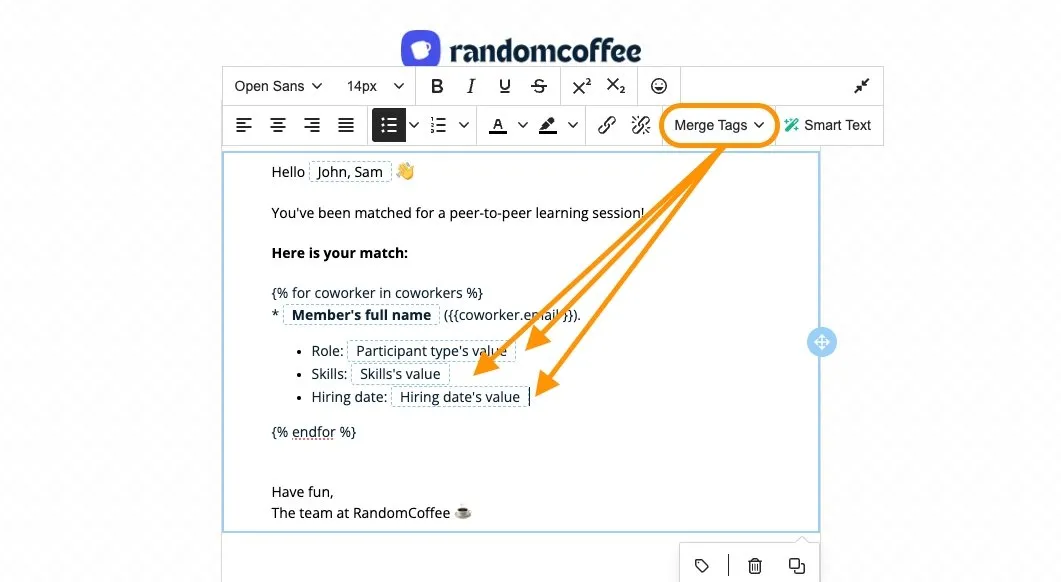
Merge tags add personal details to your messages: the recipient’s name, the program name, the members of the group… In the email editor, click a text, then “Merge Tags” in the floating toolbar, and choose a tag. In Slack and Microsoft Teams cards, use “Insert variables”.
| Merge tag | What it adds | Available in |
|---|---|---|
| “First Name” | The recipient’s first name | Opt-in message |
| “First Names” | The first names of the members of the group | Match message |
| “Company Name” | The name of your company | Opt-in and match messages |
| “Program Name” | The name of the program | Match message |
| “Unsubscribe Link” | A link to the unsubscribe page, where the recipient chooses to opt out of a session, of the program or of RandomCoffee | Opt-in and match messages |
| “Members” > “Repeat for each member” | The member loop (see above) | Match message |
| “Coworker” > “Full Name”, “Email” | The name and email of each member, inside the loop | Match message |
| “Coworker” > category > “Title” or “Value” | The name of a category (for example, City) or its value for each member (for example, Paris), inside the loop | Match email |
| “Coworker” > “Role (Mentor / Mentee)” | The role of each member, in mentoring programs | Match email |
| “Meeting’s organizer” > “Full Name”, “Email”, “First Name” | One member of the group, picked at random, in charge of organizing the meeting. It is not the admin, and it is the same person for everyone in the group | Match message |
| “Schedule a meeting link” | The link to the booking page (see Help participants schedule their meetings) | Match message |
| “Milestones page link” | The link to the milestones page of the group | Match message |
Category tags list the categories you created: create your categories first. The same tags apply to every member of the group:
Use “Meeting’s organizer” so that someone takes the lead. For example:
“Hi X, Y, Z! You’ve been matched! Here’s some information about your group: [member loop]. As the designated organizer for the group, [Meeting’s organizer first name], please reach out to your matches and set up a time to meet before [date]!”
Send a test email
Check the layout and content of an email before your members receive it. In the “Communication” section, click “Send test email” on the “Opt-in” or “Match email” line. The email is sent to your own address, with a subject that starts with [TEST].
A test email is not a real session. Every member of the group is replaced by you, links and buttons (opt-in, unsubscribe, booking page…) do not work, and some merge tags, such as the program name, stay empty.
Slack and Microsoft Teams cards have no test send: use the preview in the card editor.
Tips for engaging messages
Keep your messages engaging and to the point, with words that make people want to take part:
- Show what they get out of it: get to know what colleagues do, find a mentor, learn a new language, discover an opportunity in another department…
- Invite participants to share their experience: for example, a picture with their match on your internal social network. It builds a sense of belonging and makes others want to join.
- Say when the match message arrives in the opt-in message.
- Invite members to their Member Portal to set their matching preferences and availabilities.
- Add a short FAQ at the end of your match email: how to set up the meeting, what to talk about, what to do if they cannot meet, who to contact.