

SCIM provisioning
Connect your identity provider to RandomCoffee with SCIM to create, update and deactivate members automatically, including custom fields.
RandomCoffee supports SCIM (System for Cross-domain Identity Management), so you can automate the provisioning and deprovisioning of your members from your identity provider.
SCIM provisioning is available on the Pro and Enterprise plans.
With SCIM, IT administrators manage access from a central place, their identity provider. It adds security and removes manual member management. You connect RandomCoffee to your identity provider yourself, from your provider’s dashboard, once provisioning is enabled in RandomCoffee.
For what SCIM changes for RandomCoffee admins, see Provision members with SCIM.
Enable SCIM in RandomCoffee
-
Open the SCIM settings.
In RandomCoffee, go to “Settings” > “Configuration” and click the “SCIM Provisioning” card.
-
Enable provisioning.
Click “Enable”.
-
Copy the credentials.
Copy the Base URL (“Copy this Base URL”) and the API token (“Copy this API Token”), and give them to the person who configures your identity provider.
-
Set up provisioning in your identity provider.
In your identity provider, create the SCIM provisioning connection with the Base URL as the SCIM endpoint and the API token as the bearer token.
The Base URL ends with /scim/v2/. Your identity provider sends the token in the Authorization header:

Authorization: Bearer YOUR_API_TOKENEach admin sees their own API token, linked to their RandomCoffee account. If the admin whose token you use is deactivated, the token stops working: copy the token of another admin and update it in your identity provider.
What RandomCoffee reads
| SCIM attribute | Used for |
|---|---|
emails | The member’s email address (the primary email first) |
name.givenName | First name |
name.familyName | Last name |
userName | The provisioning username. When your identity provider updates it, RandomCoffee also updates the member’s email address with it: map userName to the user’s email address. |
externalId | Identifier kept for the provisioning connection |
active | Whether the member is active in your workspace |
locale | The member’s language |
title | Job title, stored as a category |
| Enterprise extension attributes | Custom fields, stored as categories (see below) |
RandomCoffee also accepts SCIM groups and their members.
Custom fields
You can send extra information about your members (department, location, manager…) as custom fields. Each custom field becomes a category in RandomCoffee, which you can then use in your programs.
Supported format
Custom fields use the SCIM enterprise extension. Their name has this format (string format):
urn:ietf:params:scim:schemas:extension:enterprise:2.0:User:xxxxxExample:
urn:ietf:params:scim:schemas:extension:enterprise:2.0:User:departmentOnly text values are imported. The name after User: becomes the name of the category in RandomCoffee: department becomes “Department”.
Add a custom field in Microsoft Entra ID
The steps below use Microsoft Entra ID (formerly Azure AD). Other identity providers follow the same logic: add the attribute to the target attribute list, then map it.
-
Open the user mappings.
In the provisioning settings of your RandomCoffee application, open “Mappings” and click “Provision Microsoft Entra ID Users” (“Provision Azure Active Directory Users” in some tenants).
-
Show the advanced options.
At the bottom of the attribute list, check “Show advanced options”, then click “Edit attribute list for customappsso”.
-
Add your custom field in the right format.
On a new line, enter the attribute name in the format above, with the type “String”. For example, to create a field named
customfield:text urn:ietf:params:scim:schemas:extension:enterprise:2.0:User:customfield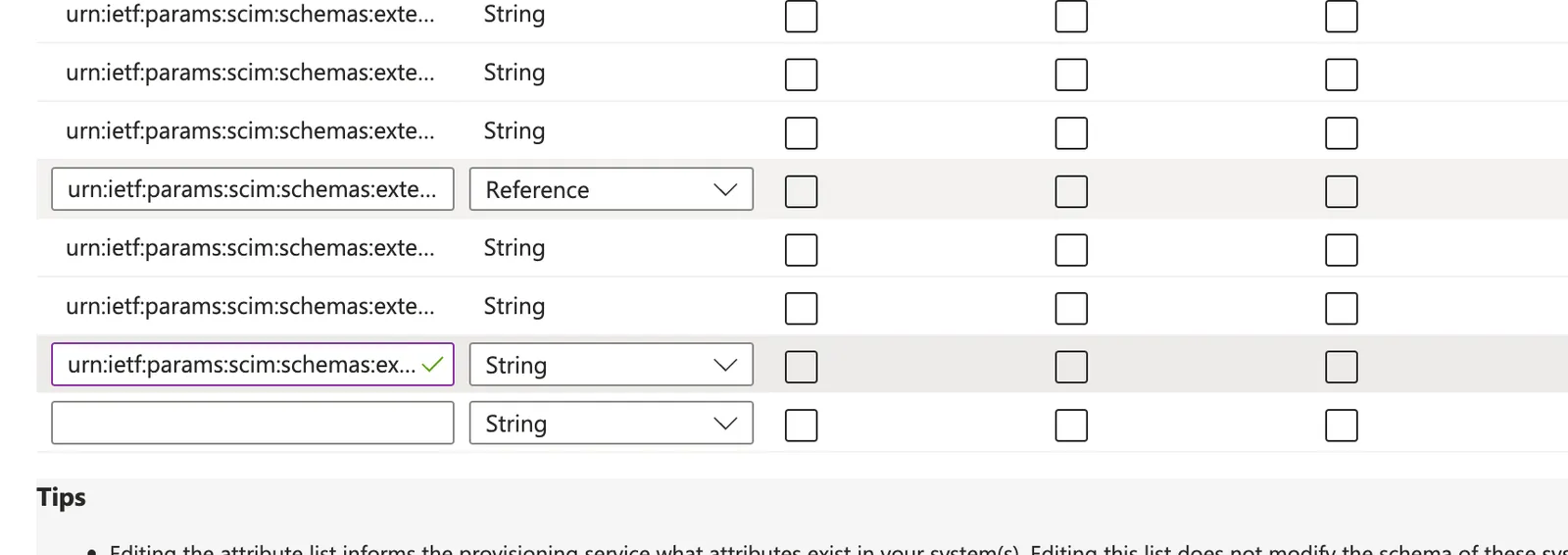
-
Save.
Click “Save”.
-
Add a mapping.
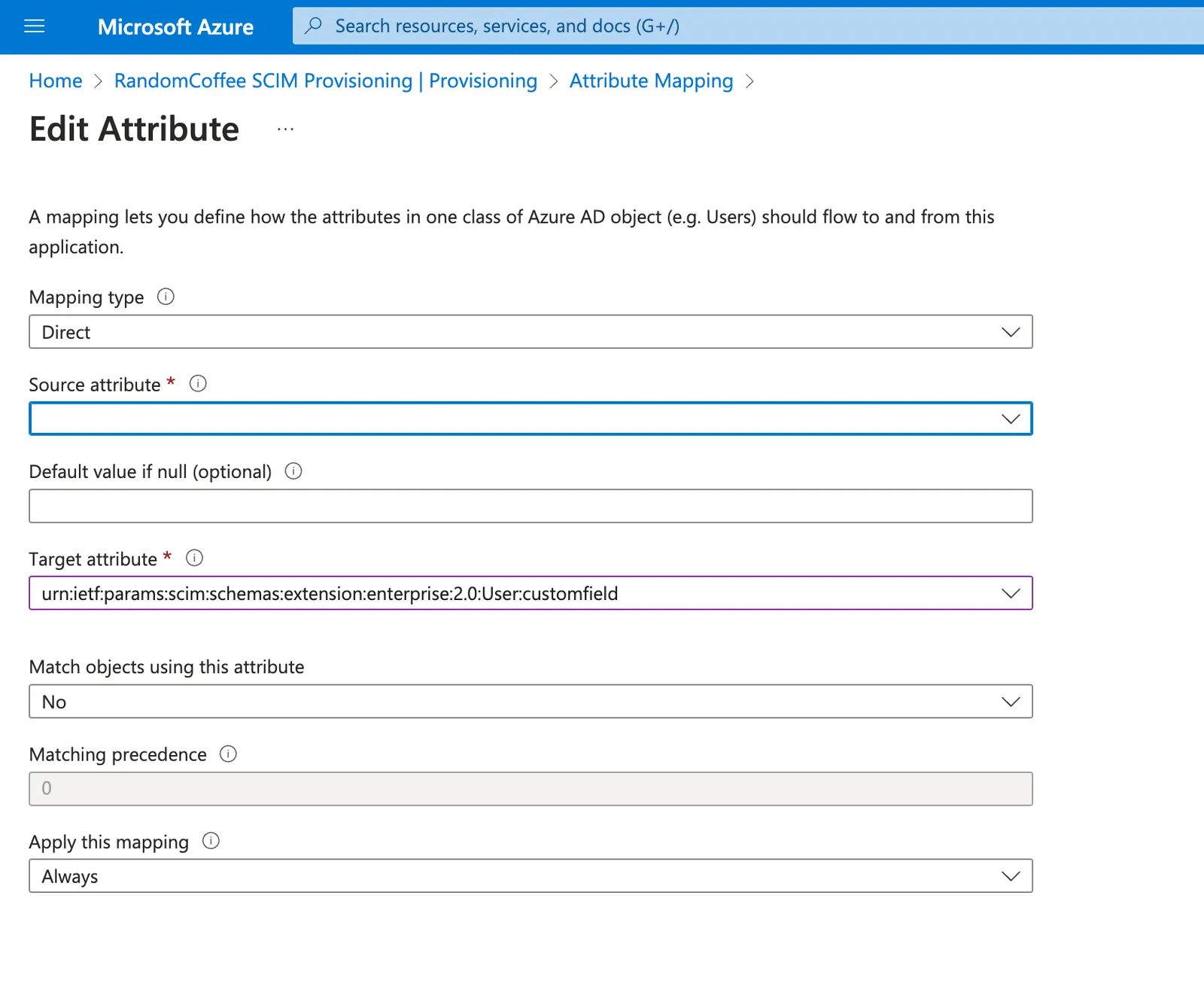
Back in the attribute mappings, click “Add New Mapping”.
-
Map your custom field and save it.
Choose the “Source attribute” from your directory and select your custom field as the “Target attribute”. Then save the mapping.
Update frequency
RandomCoffee applies each change as soon as your identity provider sends it. How often your identity provider sends changes depends on its own provisioning settings.
When a new person is assigned to the RandomCoffee application in your identity provider, they are added to RandomCoffee automatically.
What happens when someone leaves
When a user is deprovisioned in your identity provider (unassigned, deactivated or deleted), RandomCoffee deactivates the member in your workspace. The member is not deleted: if your identity provider reactivates the user, the member becomes active again.