

Microsoft Teams integration
Install the RandomCoffee app in Microsoft Teams, link it to a program, and understand its SSO, provisioning and permissions.
The Microsoft Teams integration works by associating a RandomCoffee program with one or several Microsoft Teams teams. The RandomCoffee bot then sends the program’s invitations and matches to the members of these teams, directly in Teams. The integration is available on every plan.
This page covers the technical side: installation, single sign-on, provisioning and permissions. It also refers to Microsoft protocols, which Microsoft may update over time. For questions about a contract implementation, contact support@random-coffee.com.
What the app adds to Teams
The RandomCoffee app for Microsoft Teams contains:
- A bot, available in teams and in personal chat. It sends the opt-in and match cards and answers three commands: “Help”, “Feedback” and “Snooze”.
- A channel tab, added to the team when you link a program. It shows the program’s context, schedule and activity.
- Three personal tabs: “My Activity”, “My Network” and “My Programs”.
What members see in Teams is described in How RandomCoffee works.
Before you start
- A program to link. We recommend creating at least one program in your RandomCoffee workspace before installing the app. If your workspace has no program yet, the installation window lets you create one from a template (“Create a program now”). If you do not have a RandomCoffee workspace yet, it offers “Create a Program on RandomCoffee”, and you continue once the program exists.
- Permissions in Microsoft Teams. You need to be allowed to add apps to a team in your Microsoft Teams environment (depending on your organization’s policy). If the RandomCoffee app is blocked or not available in your tenant, your IT team can allow it by following Set up RandomCoffee in the Teams Admin Center.
Install the RandomCoffee app
-
Start from RandomCoffee.
Open “Settings”, go to “Configuration”, select the “Microsoft Teams integration” card and click “Install”.
-
Add the app to a team.
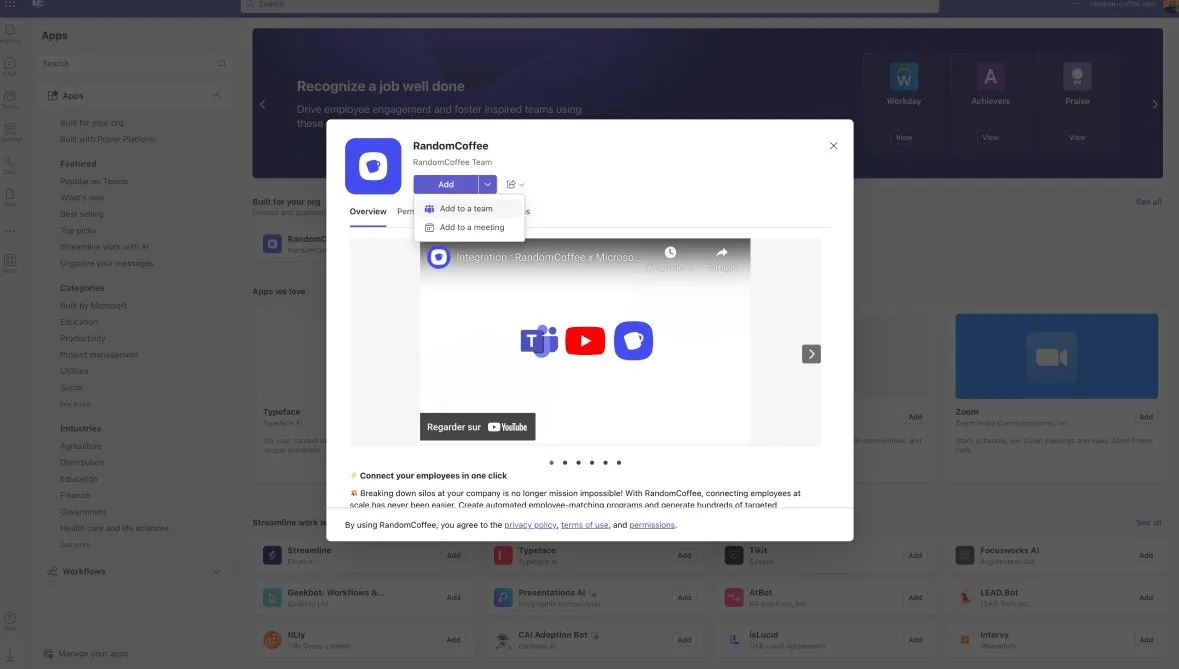
Microsoft Teams opens on the RandomCoffee app. Open the menu next to “Add” and select “Add to a team”.
-
Choose the team.
The app is installed in a team, starting from one of its channels. Select your team (and channel), then click “Set up”.
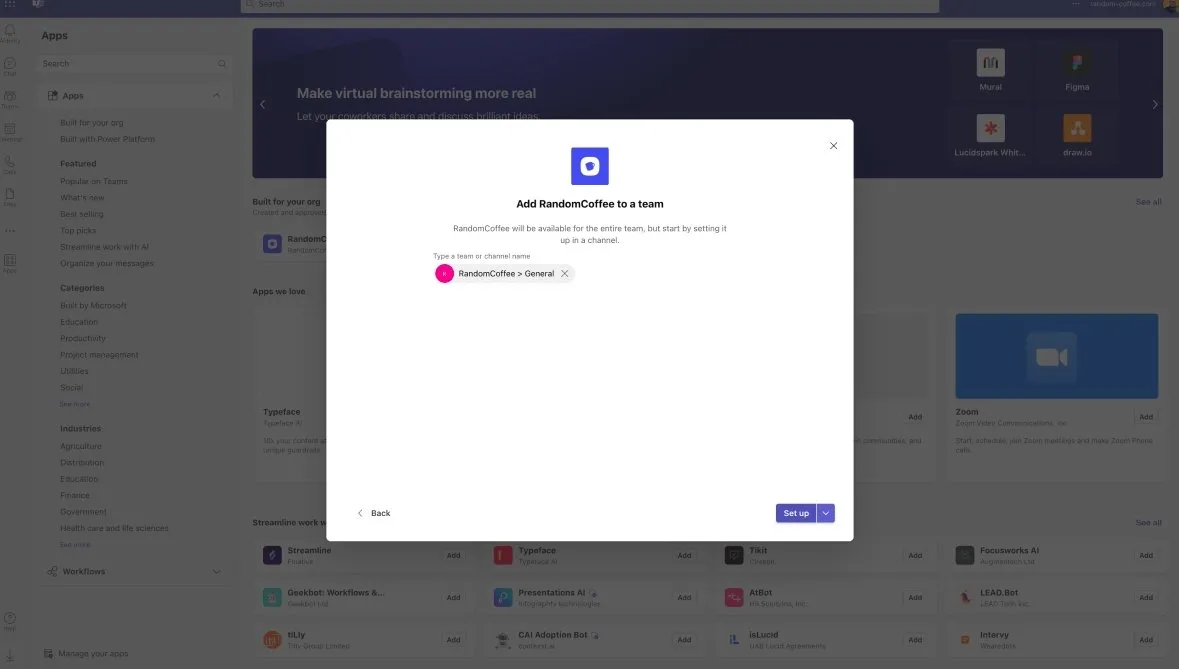
Choose a standard channel. RandomCoffee does not work in private channels for the moment.
-
Select the program to associate.
In the RandomCoffee window, select the program to link to the team, then click “Save”.
If you select an existing running program, this resets its communication templates to make them compatible with Microsoft Teams cards. Adapt your message templates once the installation is complete: see Personalize messages.
-
Check the confirmation.
Your program is now associated with the team. The RandomCoffee bot sends you, privately, a “New RandomCoffee program for the team!” card.
-
Finish setting up the program.
Click “⚙️ Setup your program” in the card, or go to your RandomCoffee workspace, to choose your matching rules, personalize your messages and schedule the upcoming sessions.
 RandomCoffee

In RandomCoffee, the “Communication” section of the program’s “Settings” now shows “Microsoft Teams” as its channel, and the team appears in “Microsoft Team”, in the “Registration” section.
You can associate several teams with one program: the program then selects people from all of them.
Who takes part in the program, and what happens when people join or leave a team, is explained in Sync members from Slack or Microsoft Teams.
Single sign-on (SSO)
How it works
RandomCoffee uses a discreet SSO protocol in Microsoft Teams. A person who has a RandomCoffee account is recognized automatically by their email address and linked to their Microsoft Teams account. The step is invisible to them.
This is what allows an admin, when adding the app to a team, to see the data of their RandomCoffee account (such as their existing programs) directly in Teams. An admin who has no RandomCoffee workspace yet is invited to create one, with a first program, before continuing.
For app users, this means:
- Teams gets the access token for the current user from Microsoft Entra ID (formerly Azure AD), without the user leaving Teams.
- Consent is needed only once. If the app and the user are in the same tenant, no consent is needed at all.
- A tenant administrator can grant consent on behalf of all users, so that nobody sees a consent dialog.
- Teams pre-fetches the token, which speeds up loading, and users have no extra password to remember.
When consent is missing, the app shows “Grant user or admin Consent” with a “Grant Consent” button.
Sequence at runtime
| # | Interaction | What happens |
|---|---|---|
| 1 | Tab app to Teams client | The tab calls getAuthToken() to ask Teams for an access token. |
| 2 | Teams client to Microsoft Entra ID | Teams requests an access token for the current user, based on their Teams identity. |
| 3 | Microsoft Entra ID to consent prompt | On first use, if the app needs protected data, the user (or the administrator) is asked to consent. A step-up authentication, such as two-factor authentication, can also be requested. |
| 4 | Microsoft Entra ID to Teams client | Microsoft Entra ID returns the access token, a JSON Web Token (JWT). Teams caches it for later calls. |
| 5 | Teams client to tab app | Teams returns the token in the result of getAuthToken(). |
| 6 | Tab app (client and server) | The RandomCoffee server exchanges the token (on-behalf-of flow) for a Microsoft Graph token with the User.Read scope and identifies the user. |
To learn more, see Microsoft’s documentation: Overview of authentication for tabs using SSO in Teams with Microsoft Entra ID.
User provisioning
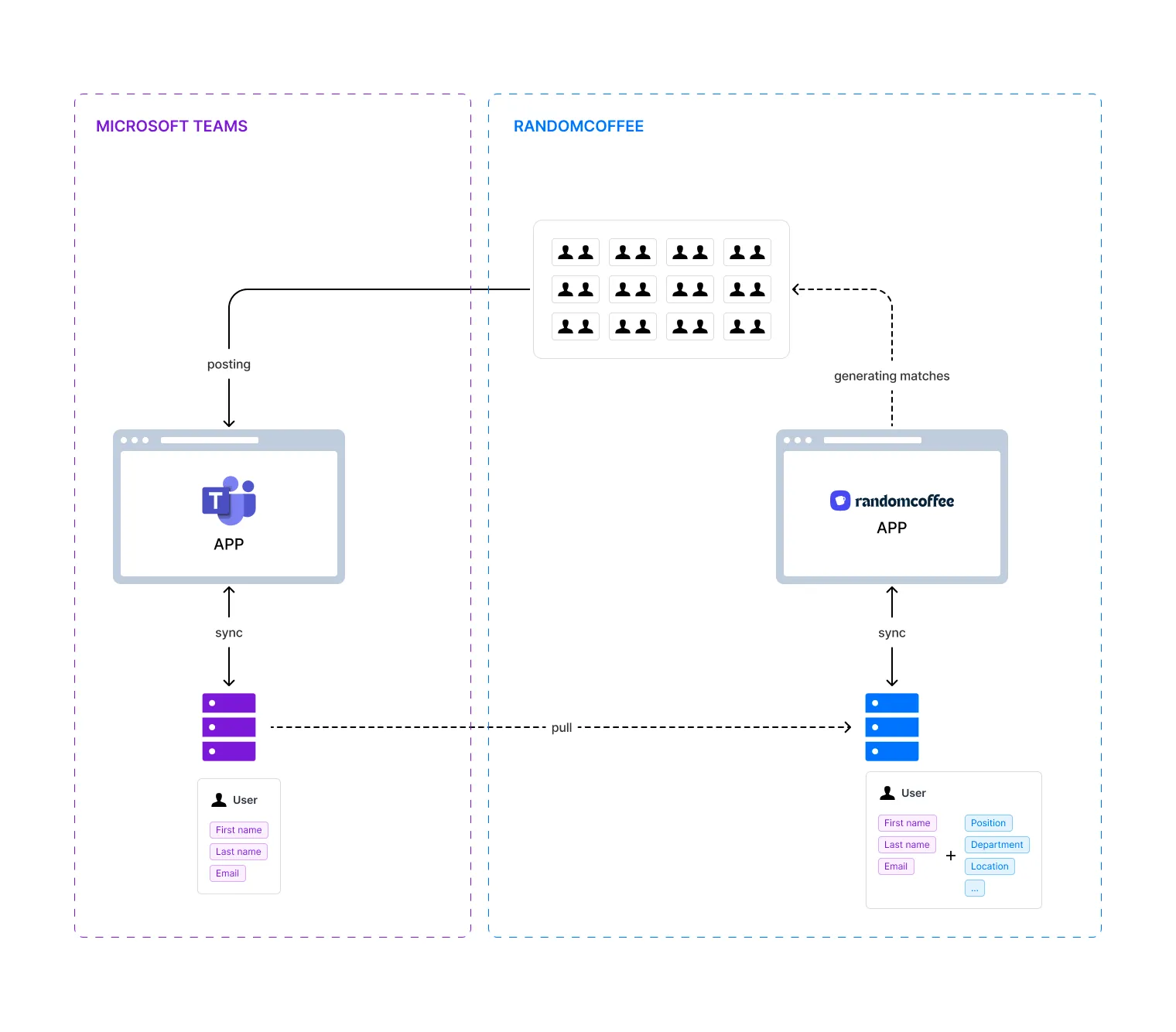
Once the RandomCoffee bot is installed in your team, RandomCoffee retrieves the list of the team’s members from Microsoft Teams. It reads only the basic information it needs for each member: first name, last name and email address. RandomCoffee then generates the matches and posts them in Teams.
App permissions
The RandomCoffee app can call Microsoft APIs once users or admins have granted their consent.
Teams app manifest permissions
identitymessageTeamMembers
Microsoft Entra ID delegated permissions
User.Read(Microsoft Graph)emailopenidprofileoffline_access
Uninstall the app
- In Microsoft Teams, right-click the RandomCoffee app in the left bar, then select “Uninstall”.
- Confirm with “Remove”.
FAQ
Can the Microsoft Teams integration and the HRIS integration work together?
Yes. Users provisioned from Microsoft Teams who also exist in your HRIS are recognized by their email address and enriched with the data from your HRIS, which you can use in your matching rules. See HRIS integration.
Members get an error when they click a button in a RandomCoffee card
The app is probably blocked or not available to them in your tenant. See Set up RandomCoffee in the Teams Admin Center.