

Update members
Edit one member's profile, change a category for several members at once, or update your whole member list with an exported file.
You can update your members’ details in three ways:
- one member, from their profile page;
- a few members at once, with the “Grouped modification” action;
- your whole list, by exporting it, editing the file and uploading it again.
To change a member’s status, see Active and inactive members. To give or remove admin rights, see Administrators and members.
Update one member
-
Open the member’s profile.
In “People” > “All members”, click the member’s name.
-
Click “Edit”.
A panel opens with the member’s details.
-
Change the values you want, then click “Save”.
Update several members at once
-
Select the members.
In “People” > “All members”, tick the box next to each member to update.
-
Open the “Actions” menu and click “Grouped modification”.
-
Choose the fields to update.
In “Search for additional fields you want to edit”, keep only the categories you want to change.
-
Enter or select the new value of each field.
-
Click “Save”.
The change applies to all the selected members. You are taken to “People” > “History”, where you can follow it.
“Grouped modification” changes categories only, except the categories managed by an integration. It is available once your workspace has at least one category. It does not change your own profile: to update your details, open your profile in “People” > “All members” and click “Edit”.
Update your whole list with a file
When you upload a CSV file of members, RandomCoffee adds or updates the members in the file. It does not replace your list: the members who are not in the file stay in your workspace, unchanged. No data is lost.
Export your member list
-
Select all your members.
In “People” > “All members”, tick the box at the top of the list, next to “Name”, then click “Select all members”.
By default, the list only shows active members. To export inactive members too, change the “Status” filter first (see Check a member’s status).
-
Open the “Actions” menu and click “Export in .xls”.
Your member list is sent to you by email.
Edit the file
Open the file and make the changes you want.
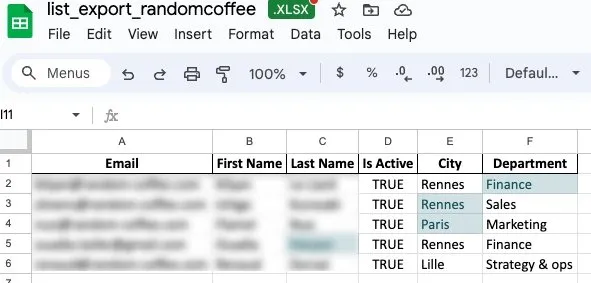
Update values for existing members by changing them in the file. In the example below, the changed values are highlighted.
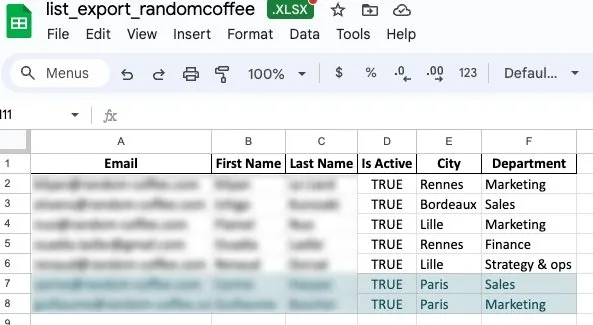
Add new members by adding new rows.
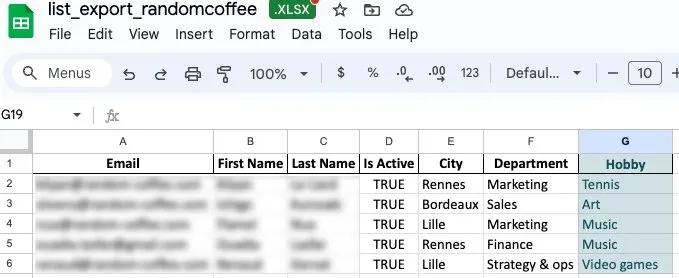
Add new categories by adding new columns. If you do not know a value for every member, leave the cell empty: it shows as N/A in your member list.
Upload the updated file
-
Save your file in CSV format.
-
Upload it.
In “People” > “All members”, click “Add new members”, then follow the steps of the “Upload a member list” tab, as described in Add members with a CSV file.
Once the file is processed, your member list shows your changes.
If you turn on “Send a welcome email (optional)”, only the new members of your file receive it.
Deactivate or reactivate members with a file
To deactivate (or reactivate) many members at once:
-
Export your member list, as described above.
-
Add a column called “To deactivate” (or “To reactivate”).
-
Write “YES” in this column for each member to deactivate (or reactivate).
-
Upload the file, and create a new category for this column when you map the columns.
-
Filter your member list on this category: in the filters at the top of “People” > “All members”, click “Add filter”, choose your new category and the value “YES”, then click “Search”.
-
Select all the members shown, then use the “Deactivate members” (or “Activate members”) action, as described in Active and inactive members.
If you use the Slack or Microsoft Teams integration, your members are synchronized automatically (first name, last name, email). You can still edit their other fields, or upload a CSV file, to enrich your list with new categories for example.