

Workday RaaS integration
Import your employee data from Workday with a custom Reports as a Service (RaaS) report and its credentials.
RandomCoffee can import all your employee data directly from Workday, using the “Reports as a Service” (RaaS) API of Workday.
The Workday RaaS integration is available on the Enterprise plan.
You will need to work with your internal Workday specialist, or a Workday support contact, to create the custom report that RandomCoffee uses.
For other HRIS, see HRIS integration.
Step 1: Create a custom Workday report
Create a custom report in Workday that contains the fields you need and includes everyone who should be a member of RandomCoffee.
The custom report must:
- Include all active employees who should appear in RandomCoffee.
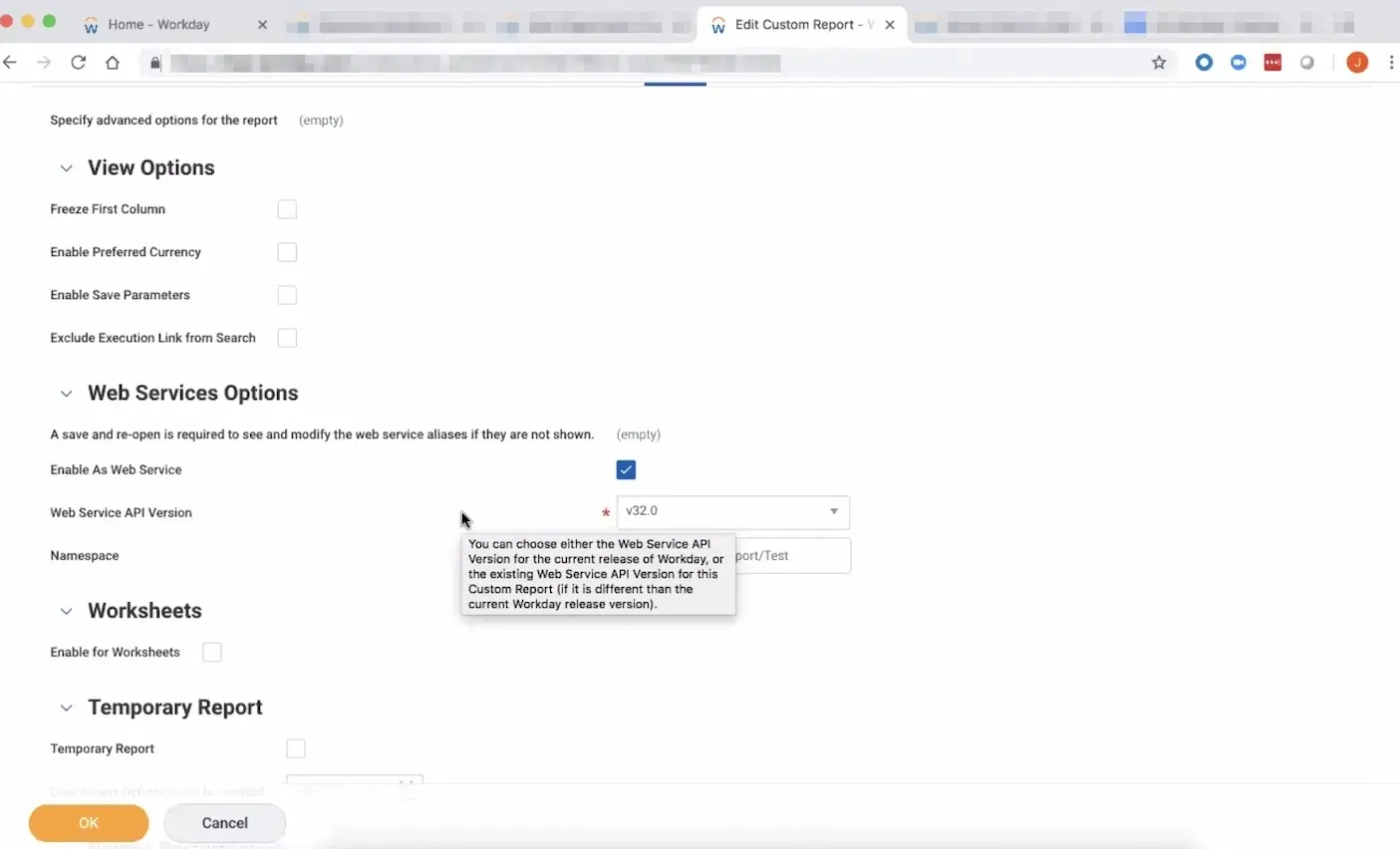
- Be enabled as a web service, so that RandomCoffee can call the Workday Reports as a Service API.
- Be available in JSON format.
- Have a report owner with the permissions needed to access every field in the report.
At a minimum, include these fields:
first_namelast_nameemail
Also include any other column you want to use in RandomCoffee (department, location…). Each one can become a category.
Example screenshots
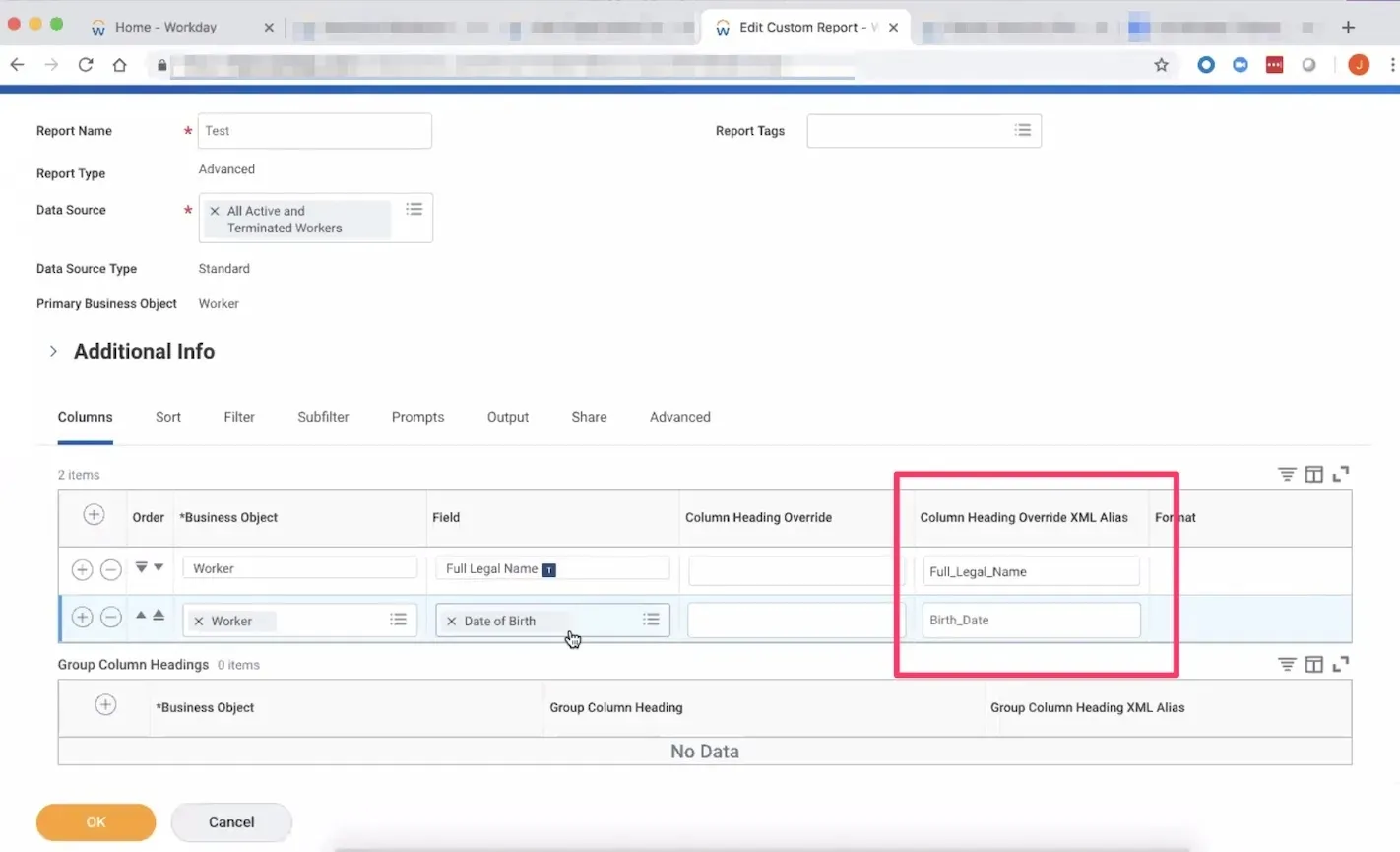
Columns of the report, with their XML alias:
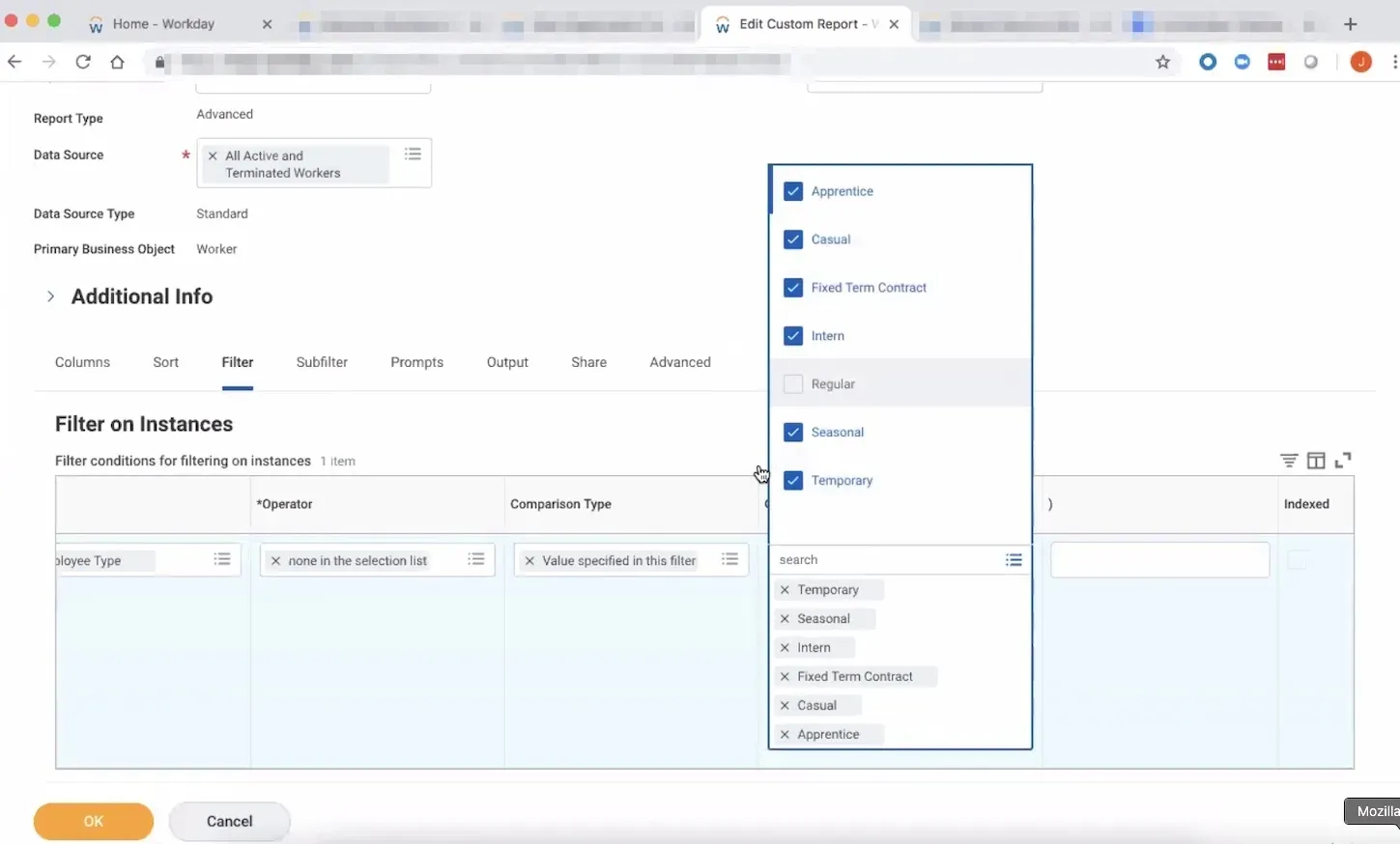
A filter that keeps only some employee types:
The web service option, in the “Advanced” tab:
In the “Share” tab, check who owns the report: the owner must be able to access all the fields it contains.
Step 2: Get the report credentials
RandomCoffee reads the report in JSON format. You need three pieces of information:
-
The report URL, in JSON format. The end of the URL sets the format: it must end with
?format=json. RandomCoffee only accepts anhttpsaddress on amyworkday.comdomain, for example:text https://<your-workday-host>.myworkday.com/ccx/service/<path-to-your-report>?format=json -
The username used to access the report (the integration username, not an email address).
-
The password used to access the report.

This step usually requires your IT team and/or a Workday technical representative.
Step 3: Enter the credentials in RandomCoffee
-
Open the Workday integration.
Open “Settings”, go to “Configuration” and select the “Sync HRIS Data from Workday” card.
-
Enter the credentials.
In the “Import” step, fill in “URL”, “Username” and “Password”, then click “Continue”. RandomCoffee calls the report to read its columns.
-
Map the columns.
In the “Map columns” step, map the report columns to RandomCoffee fields and categories, and choose your import options. Click “Continue” to save the configuration.
Check “Disable active users that are not in the RaaS report” to keep your members list in line with Workday: at each import, active members who are not in the report are deactivated (they are not deleted). Make sure your RandomCoffee admins are in the report too, so their access stays active.
Once saved, RandomCoffee imports the report automatically once a day.
How RandomCoffee reads the report
- RandomCoffee calls the report URL with HTTP basic authentication (the username and password above).
- It reads the employees listed under
Report_Entryin the JSON response. - It maps each entry with your column mapping: the email address identifies the member, the first and last names complete their profile, and the other columns become category values.