

Help participants schedule their meetings
Set up a booking page or Microsoft Teams meeting links so that matched participants can schedule their coffee in one click.
Once participants are matched, they still have to find a time to meet. RandomCoffee gives you two ways to make this step easier, so that more matches turn into actual meetings:
| Booking page | Microsoft Teams meeting | |
|---|---|---|
| How it works | Participants open a RandomCoffee booking page and pick a slot where everyone in the group is available. | Participants open a new Microsoft Teams meeting, already filled in with their group, and choose the date and time themselves. |
| Channels | Email, Slack and Microsoft Teams | Microsoft Teams, and emails in a workspace connected to Microsoft Teams |
| What participants need | Their availabilities and, ideally, a connected Google or Outlook calendar | Microsoft Teams |
| What you set up | The meeting info, then the booking link in your match message | Nothing on Microsoft Teams; a button in your match email otherwise |
This article covers what you set up as an admin. To see what participants do, read Book a meeting with your match.
Set the meeting info
Both options use the meeting info of your program: the booking page displays it, and the Microsoft Teams meeting is created with its title and description.
-
Open your program and go to its settings.
Open the program, click the “Settings” tab, then “Booking”.
-
Set the meeting info.
- “Meeting duration”: 15, 30, 45 or 60 minutes (30 minutes by default). Participants can still change it after booking the meeting.
- “Meeting title”: the name of the meeting. By default, the program name.
- “Meeting description”: a few words to help participants put the meeting in context. By default, the program goal.
On the right, the “Booking page preview” shows how participants will see this information.
-
Save your changes.
You find these fields in the “Booking” section of the program’s “Settings” tab.
Option 1: the booking page
How the booking page works
For each match, the members of the group share one booking page. It only offers slots where everyone is available, based on the availabilities each member set in their Member Portal and the Google or Outlook calendars they connected.
- The first participant to book a slot books it for the whole group.
- Every member receives a confirmation email with a calendar invitation, whatever the channel of the program. When a member has connected a calendar, the meeting is also added to it.
- Any member can reschedule or cancel the meeting later. Everyone’s calendar is updated.
Before your first session, invite participants to define their availabilities and connect their calendar in their Member Portal. Without availabilities, a member is considered available at all times.
Members can only connect a calendar when the “Calendar integrations” section of the Member Portal is turned on. See Member Portal access.
Add the booking link to your match message
The booking page is reached through the {{schedule_meeting_link}} variable. Add it to your match message, in the “Communication” section of your program’s “Settings” tab.
-
Open the match email.
In “Program emails”, find the “Match email” and click “Customize” (pencil icon).
-
Add a button that opens the booking page.
Add a button to the email. In its “Action” settings, choose “Open Website” and enter
{{schedule_meeting_link}}as the URL.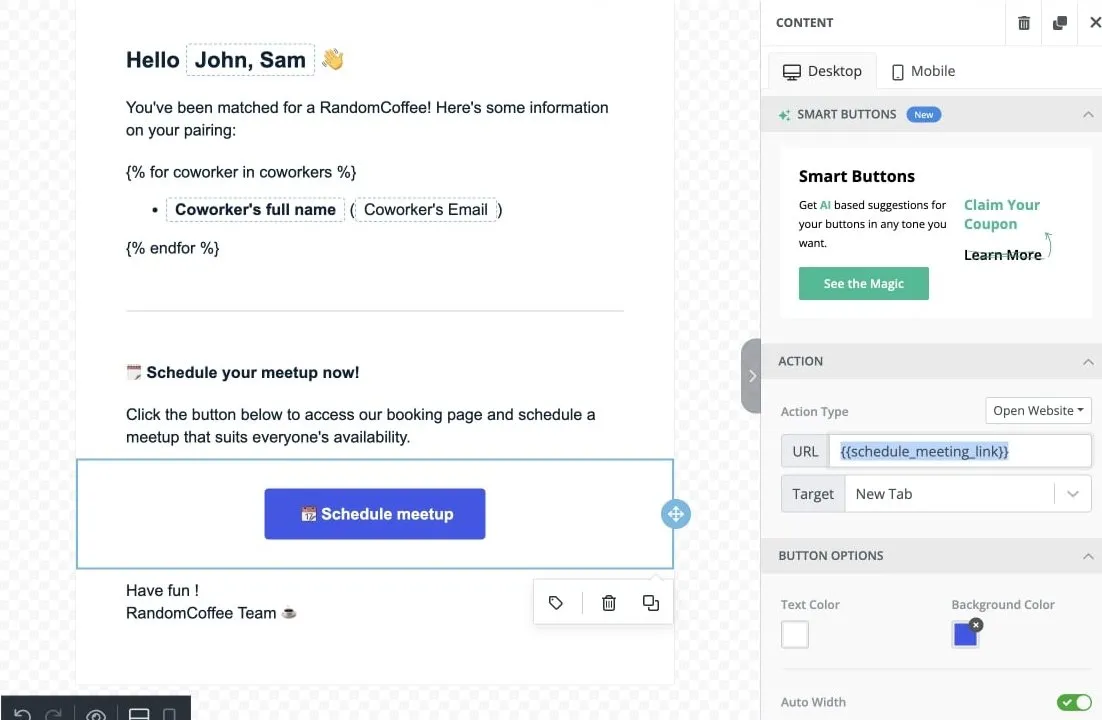
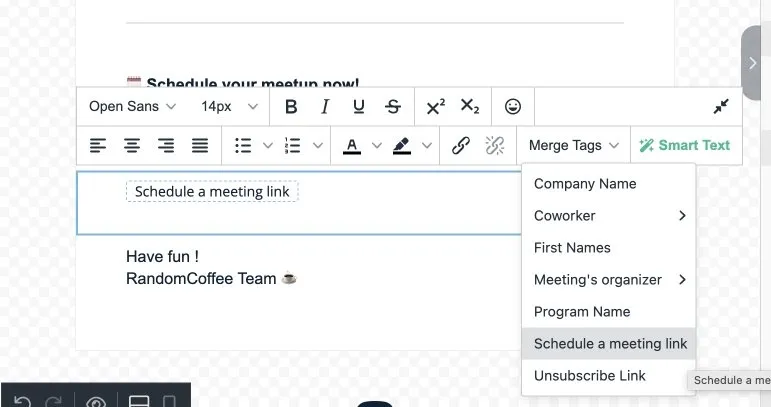
You can also insert the link in a text block: click “Merge Tags”, then “Schedule a meeting link”.
-
Save the email.
In the “Match Card” editor, add a clickable link to the booking page:
- Click the link button of the toolbar (“Add link”).
- In “Text”, write the text of the link, for example “Schedule your meetup now!”.
- In “URL”, enter
{{schedule_meeting_link}}, then click “Add”.
The card stores it as a Markdown link. You can also paste this Markdown directly into the editor:

[Schedule your meetup now!]({{schedule_meeting_link}})The variable is also listed in “Insert variables”, as “Schedule a meeting link”.
On Microsoft Teams, the match card always has a “Schedule your meetup” button, which opens a Microsoft Teams meeting (see option 2 below).
If you prefer participants to use the booking page, add a link to it in the “Match Card” editor, the same way as for Slack: with the link button (“Add link”) and {{schedule_meeting_link}} as the URL, or by pasting this Markdown:
[Schedule your meetup now!]({{schedule_meeting_link}})When your program has an “Agenda”, the link opens the program’s milestones page instead, where participants book one meeting per milestone.
Option 2: a Microsoft Teams meeting
This option needs no calendar sync. Participants open a new Microsoft Teams meeting, already filled in with the meeting title and description and with the members of their group as attendees. They choose the date and time, then send the invitation.
- Whoever sends the invitation first schedules the meeting for the whole group.
- The meeting appears in their Outlook calendar if it is synchronized with Microsoft Teams.
- Participants can reschedule it at any time, like any other meeting.
If your workspace is connected to Microsoft Teams but your program sends its match messages by email, add a button to the match email:
-
Open the match email.
In “Program emails”, find the “Match email” and click “Customize” (pencil icon).
-
Add a “Schedule your coffee” button.
Add a button to the email. In its “Action” settings, choose “Open Website” and enter
{{schedule_meeting_link_on_msteams}}as the URL.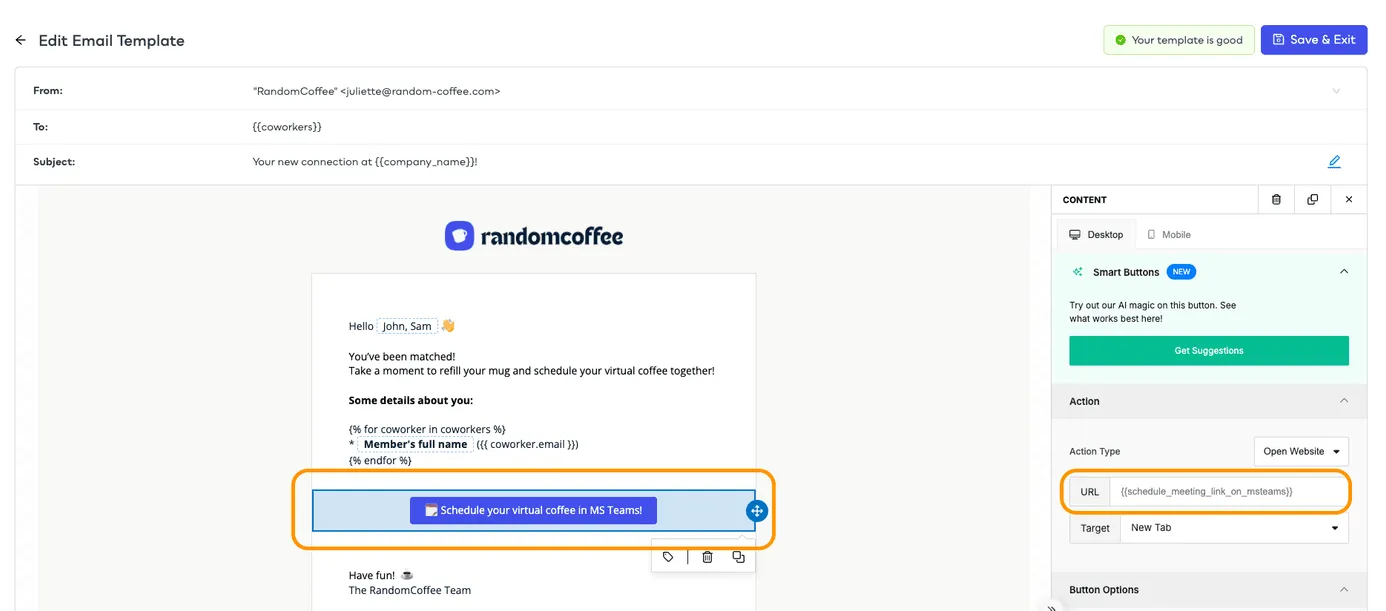
-
Save the email.
In “Merge Tags”, this variable is listed as “Schedule a meeting link (on MS Teams)”. It only appears when your workspace is connected to Microsoft Teams, along with “Chat link (on MS Teams)” and “Video call link (on MS Teams)”.
This option is for workspaces that use Microsoft Teams. On Slack, use the booking page (option 1).
There is nothing to set up. Every match card sent on Microsoft Teams ends with three buttons: “Schedule your meetup”, “Start a chat” and “Start a call”. “Schedule your meetup” opens the new Microsoft Teams meeting.
To make sure someone takes the lead, mention the “Meeting’s organizer” variable in your match message. It names one member of each group, the same for everyone in the group. See Personalize your messages.