

Create an audience
Build an audience with filters on member info, activity and categories, manage it, and use it to choose who takes part in a program.
With audiences, you group members for your programs with filters, then keep the group up to date automatically (dynamic audience) or by hand (static audience). To understand the difference between the two types, see Audiences.
Create your audience
You build an audience from your member list: you filter it, then save the result as an audience.
-
Open your member list.
Go to “People” > “Audiences” and click “Create audience”. A message explains that you will be redirected to the member list: click “Continue”. You can also go straight to “People” > “All members”.
-
Choose how your filters combine.
In “Where … of the following conditions match:”, choose “All” or “at least one”.
- “All” uses AND logic: only people who match every filter are included.
- “at least one” uses OR logic: anyone who matches at least one filter is included.
-
Add your filters.
Click “Add filter”, then choose a field, an operator and a value. Fields are grouped in three lists:
- “Members’ info”: “Status”, “Role”, “Audiences”, “Created Date”, “Email, first name or last name”, “First name”, “Last name”, “Email”.
- “Members’ activity”: “Last matched date”, “Number of matchs (overall)”, “Number of opt-ins (per program)”, “Number of matchs (per program)”. For the per-program fields, you also choose the program. “Number of opt-ins (per program)” counts the invitations the member received in that program, accepted or not.
- “Categories”: all your categories.
You can add as many filters as you want.
Build an audience from other audiences: choose “Audiences” in the list, then the operator “Belongs to one of” or “Does not belong to one of”, and select your audiences.
-
Update the list.
Click “Search”. The list and the number of matching users update.
-
Save your audience.
Click “Save as new audience”. If you have no filter, RandomCoffee asks you to confirm that you want an audience with all your workspace members.
-
Name it and choose its type.
In “Create new audience”, enter the “Audience name” and choose the “Audience type”: “Dynamic audience” or “Static audience”.
-
Create it.
Click “Create audience”. You find it in “People” > “Audiences”.
Work with filters
- Add a filter: click “Add filter”.
- Duplicate a filter: click the copy icon at the end of the filter row.
- Remove a filter: click the minus icon at the end of the filter row.
- Remove all filters: click “Clear filters”.
Operators for dates
Date fields (“Created Date”, “Last matched date” and Date categories) offer these operators. “N” is a number of days that you enter.
| Operator | Who is included |
|---|---|
| “Is before” | Dates before the date you pick |
| “Is before or equal to” | Dates before or on the date you pick |
| “Is after” | Dates after the date you pick |
| “Is after or equal to” | Dates on or after the date you pick |
| “Is before N days ago” | Dates more than N days in the past |
| “Is after N days ago” | Dates within the last N days, and any later date |
| “Is before N days from now” | Dates earlier than N days from today, past dates included |
| “Is after N days from today” | Dates more than N days in the future |
| “Exists” | Members who have a value (Date categories only) |
| “Does not exist” | Members who have no value (Date categories only) |
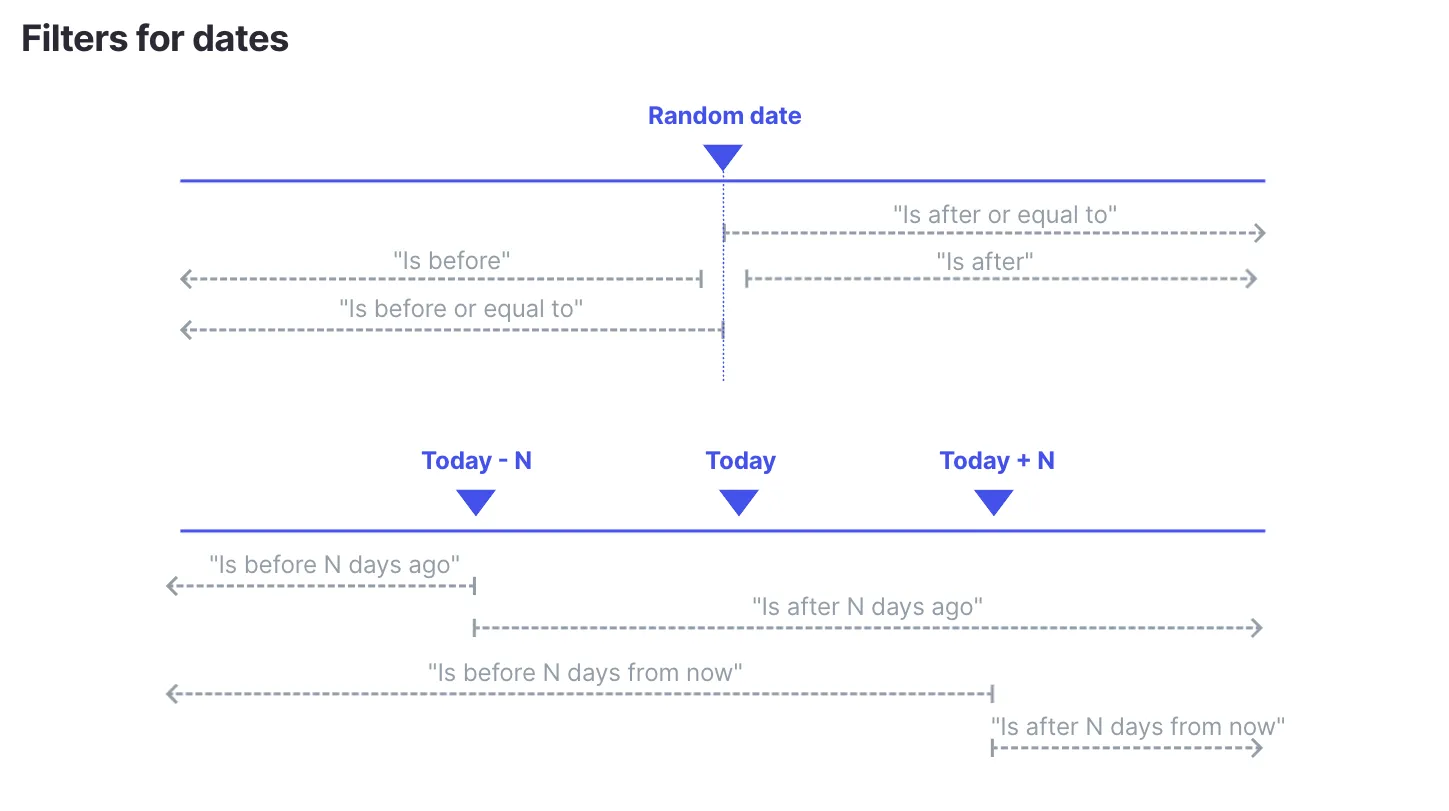
A date filter only includes members who have a date. For example, members who have never been matched have no “Last matched date”: “Is before N days ago” does not include them.
Operators for other fields
- Dropdown and Yes/No categories: “Is equal to”, “Is not equal to”, “Is one of”, “Is not one of”, “Exists”, “Does not exist”.
- Multiple Choice categories: “Contains”, “Does not contain”, “Exists”, “Does not exist”.
- Short Text categories: “Is equal to”, “Is not equal to”, “Contains”, “Does not contain”, “Starts with”, “Ends with”, “Exists”, “Does not exist”.
- Number categories: “Is equal to”, “Is not equal to”, greater than, greater than or equal, “Less than”, “Less than or equal”, “Exists”, “Does not exist”.
- Number of matches and opt-ins: the same comparisons as numbers, without “Exists” and “Does not exist”.
- “Status” and “Role”: “Is equal to”, “Is not equal to”, “Is one of”, “Is not one of”.
- Name and email fields: “Contains”.
Manage your audiences
Open an audience from “People” > “Audiences”. At the top right, you can:
- Send a broadcast to the audience with “Send broadcast” (see Create a broadcast);
- Rename it with the text icon;
- Duplicate it with the copy icon;
- Delete it with the bin icon.
You can also rename, duplicate or delete an audience from the list, with the menu at the end of its row.
Export your audience
Click “Export in .xls” (for a static audience, it is in the “Actions” menu). The file is sent to your email address.
Edit your audience
Dynamic audience
A dynamic audience updates automatically from its filters: you cannot add or remove people by hand. To change who is in it, open the audience, change its filters, click “Search”, then “Save”.
Static audience: add members
You can add members to a static audience in three ways.
From the member list
-
In “People” > “All members”, select the members you want to add.
-
Click “Actions” > “Add to Audience”.
-
Select the audience(s) in “Select audience(s)”, then click “Add to Audience(s)”.
From the audience
-
Open your audience, then click “Actions” > “Add new users”.
-
Search for the people to add by name or email, then click “Save”.
From the member profile
Click the member’s name to open their profile, go to the “Audiences” tab and click “Add to Audience”. This tab also shows which audiences the member belongs to.
Static audience: remove members
Open your audience, select the members in the list, then click “Actions” > “Remove from audience” and confirm.
Use your audience in a program
Once saved, your audience can define who takes part in a program.
-
Open your program and go to the “Settings” tab, then the “Registration” section.
-
Select your audiences.
In the “Audience” field, select one or more audiences. If the program offers an “Enrollment mode”, choose “Audience” first.
If the field shows a tree of categories instead (older programs), click “Switch to audiences”.
-
Save your program.
When you select several audiences, their members are combined (OR logic): anyone who belongs to at least one of the selected audiences takes part in the program. If someone is in audience A or in audience B, they are included.
- Audiences apply to programs sent by email. A Slack or Microsoft Teams program selects its participants from a channel or a team instead.
- On the Free plan, a program only includes the first 20 people of its audience.
Audiences are also used in:
- the Group composer algorithm, to fill each seat of a group from an audience;
- matching rules, to force or prevent matches between members of selected audiences;
- mentoring programs, to select the audiences that contain your mentors and your mentees.