

Slack integration
Install the RandomCoffee app in your Slack workspace, choose which users it provisions, add private channels and uninstall it.
The Slack integration connects your RandomCoffee workspace to your Slack workspace. Once installed, it does two things:
- Provisioning: RandomCoffee imports the users of your Slack workspace, or of the channels you choose, as members.
- Messaging: programs that use Slack as their communication channel send their invitations and matches as Slack messages.
The integration is available on every plan.
Before you start
- You need to be an admin of your RandomCoffee workspace.
- In Slack, you must be authorized to install apps and grant the permissions they request (depending on your organization’s policy). If you are not, ask your Slack administrator to do the installation with you.
Install the Slack integration
-
Open the Slack integration.
In RandomCoffee, open “Settings”, go to “Configuration”, select the “Slack Integration” card and click “Install”.
-
Grant the permissions in Slack.
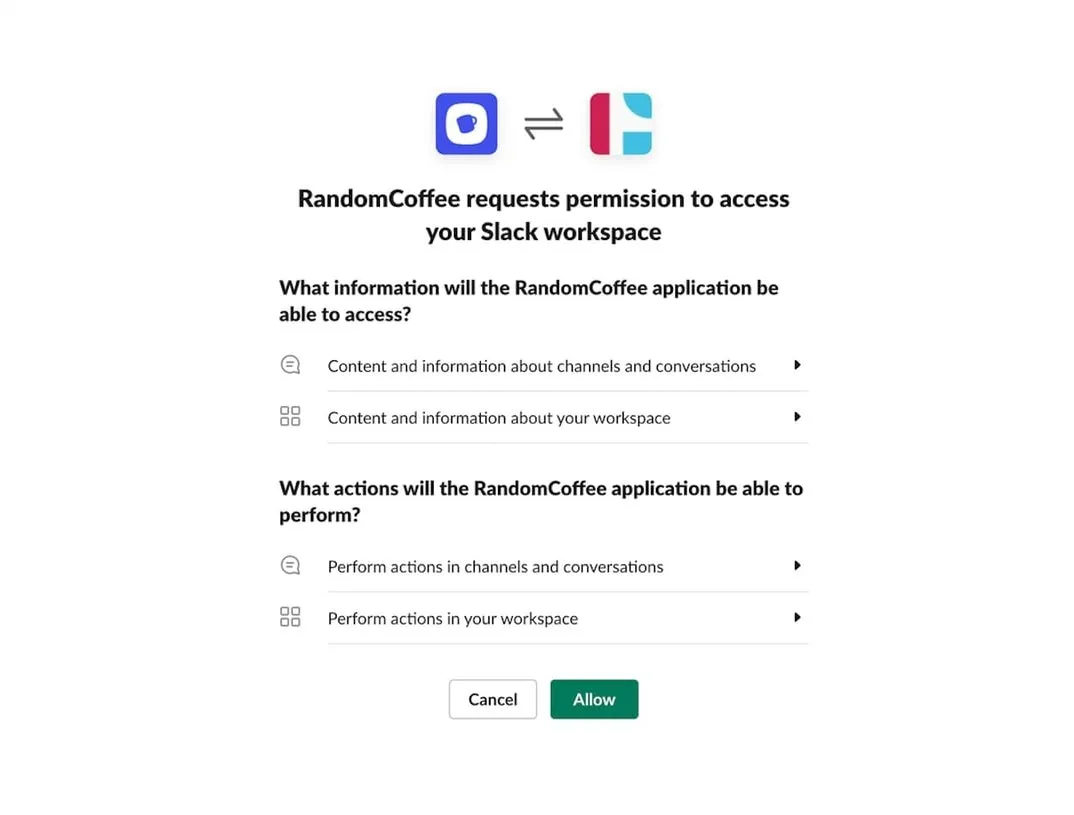
You are redirected to a Slack page that asks for permission to connect RandomCoffee to your workspace. Click “Allow”. The permissions are listed below.
-
Choose what to provision.
Back in RandomCoffee, choose how to provision your workspace:
- “Provision all the workspace”: every user of your Slack workspace is imported.
- “Provision members from specific channels”: only the members of the channels you select are imported.
Then click “Provision”. Your choice sets which Slack users RandomCoffee imports as members. Existing members are updated, not duplicated.
To see what happens to members afterwards (when they are synchronized, who is added or removed), read Sync members from Slack or Microsoft Teams.
Manage the integration
Once installed, the “Slack Integration” panel shows:
- “Workspace”: the name of the connected Slack workspace.
- “Permissions”: the list of permissions your Slack workspace has granted.
- “Provisioning”: where you switch between the whole workspace and specific channels. Click “Save” after a change.
- “Actions”: “Update Permissions” runs the Slack authorization again, and “Delete” removes the integration (see Uninstall the integration).
Permissions requested
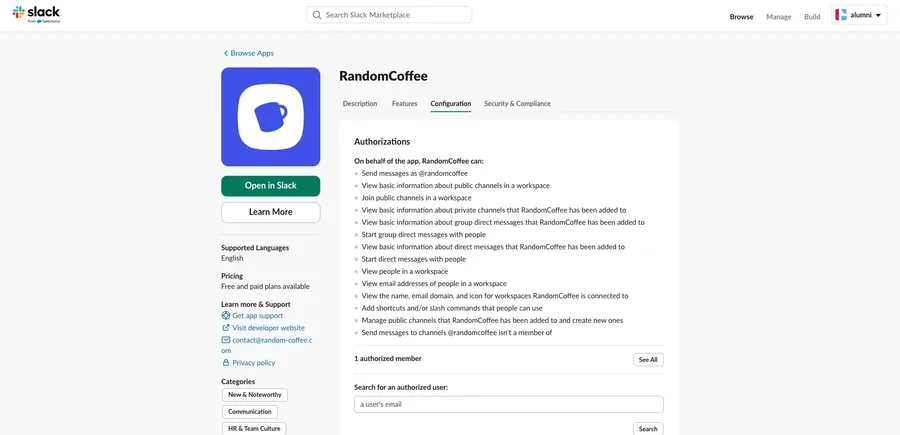
RandomCoffee requests these bot scopes from Slack:
| Scope | What it allows |
|---|---|
chat:write | Send messages as the RandomCoffee app |
chat:write.public | Send messages to channels the app is not a member of |
channels:read | View basic information about public channels |
channels:join | Join public channels |
channels:manage | Manage public channels the app has been added to, and create new ones |
groups:read | View basic information about private channels the app has been added to |
im:read | View basic information about direct messages the app has been added to |
im:write | Start direct messages with people |
mpim:read | View basic information about group direct messages the app has been added to |
mpim:write | Start group direct messages with people |
users:read | View people in the workspace |
users:read.email | View the email addresses of people in the workspace |
team:read | View the name, email domain and icon of the workspace |
commands | Add shortcuts and slash commands |
You can review the same list in Slack, on the “Configuration” tab of the RandomCoffee app page.
Include private channels
By default, RandomCoffee cannot access private channels. To make a private channel available for provisioning and as a program audience, invite the app to it:
- In Slack, open the private channel.
- Type
/invite @RandomCoffeein the message field and send it. - Slack confirms that RandomCoffee has been added to the channel.
- Back in RandomCoffee, the private channel now appears in the channel list, marked with a lock icon.
To stop using a private channel, open “Settings”, then “Configuration”, open the “Slack Integration” card, remove the channel from the list in “Provisioning” and click “Save”.
Legacy Slack bot
If your Slack workspace still runs the legacy RandomCoffee Slack bot (the former free bot), installing the Slack integration stops it: its scheduled runs and its active programs are switched off. You cannot go back to the legacy bot afterwards.
Uninstall the integration
You can disconnect Slack from RandomCoffee, remove the app from Slack, or both.
Disconnect Slack from RandomCoffee
In RandomCoffee, open “Settings”, then “Configuration”, open the “Slack Integration” card and click “Delete” in “Actions”. A message reminds you what happens to your Slack programs: click “OK” to remove the integration.
Your Slack programs then switch to email, and the ones that were running are paused. Review their messages, then reactivate them: see Personalize messages.
Remove the app from Slack
- In Slack, select the RandomCoffee app, open its “About” tab and click “Configuration”.
- The app page opens in your browser. Scroll down to “Remove App” and click “Remove App”.
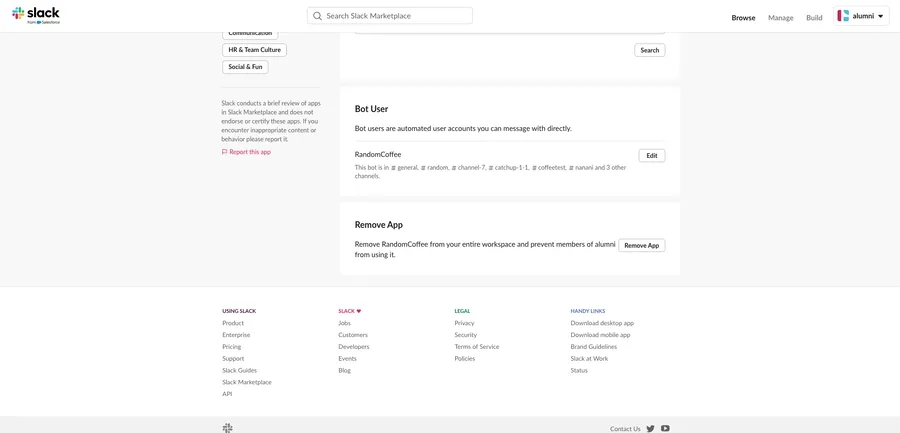
Removing the app removes RandomCoffee for every member of your Slack workspace.
FAQ
Can I give RandomCoffee access to some channels only instead of the whole workspace?
Yes. In “Provisioning”, choose “Provision members from specific channels” and select the channels. Only their members are imported.
Can the Slack integration and the HRIS integration work together?
Yes. Users provisioned from Slack who also exist in your HRIS are recognized by their email address and enriched with the data from your HRIS. See HRIS integration.
Does installing the integration switch my programs to Slack?
No. Each program keeps its own communication channel. To send a program through Slack, see Create a program. To see what members receive in Slack, see How RandomCoffee works.