

Create a broadcast
Send an email to your whole organization or to targeted audiences, from your workspace, then schedule it and follow its results.
Broadcasts let you design and send email campaigns to your entire organization or to specific groups of members, directly from your workspace. You build the email in a drag-and-drop editor, choose who receives it with your audiences, send it now or schedule it, then follow its opens and clicks.
Broadcasts are sent by email only, whatever the communication channel of your programs.
Before you start
Recipients are chosen with audiences: groups of members built on their profile (team, location, department, any category) and their activity in RandomCoffee. Create the audiences you need first, in “People” > “Audiences”: see Create an audience.
From an audience page, the “Send broadcast” button creates a broadcast with that audience already selected.
Create your broadcast
-
Create the broadcast.
Go to “Broadcasts” in the left menu and click “New communication”. If you have never created a broadcast, click “Create your first broadcast”.
Give your broadcast a name in the “New Broadcast” window (for example, “Weekly Update #3”) and click “Create”. The broadcast opens on its “Recipients” tab, with the “Draft” status.
-
Add recipients.
In “Audience”, select one or several audiences. Members who match any of the selected audiences are included. The table below lists the people concerned, with their name and email.
Recipients come from your audiences only. Inactive members are not excluded automatically: if you want to reach active members only, add a “Status” filter to your audience.
-
Create the content.
Open the “Content” tab. You can:
- start from scratch with “Blank”;
- or use one of your saved email templates: click “Preview” to look at it, then “Use This Template”. RandomCoffee makes a copy of the template for this broadcast, so the original stays as it is.
The email editor opens. It is the same drag-and-drop editor as for the opt-in and match emails of your programs.
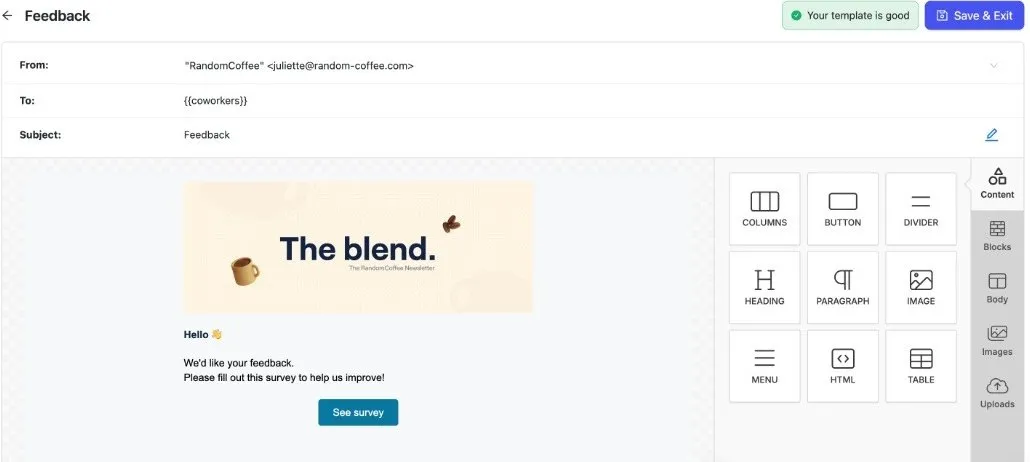
You can personalize:
- the sender, in “From:”. By default, emails are sent from
juliette@random-coffee.com. To send from your own address, set up your own sending domain first. Choosing your own sender is available on the Pro and Enterprise plans; - the subject, in “Subject:”. It is required;
- the content: logo, text, images, buttons, dividers, columns… almost everything.
Click “Save & Exit” to save your email and go back to the “Content” tab.
-
Review your broadcast.
Open the “Review” tab. “Review your setup” shows at a glance:
- “Recipients”: the number of people your broadcast will be sent to;
- “Content”: the email used, with its name and subject;
- “Tracking”: whether open tracking and click tracking are on. With the default sender, both are always on. With your own sending domain, they follow the tracking settings of that domain.
A green check mark shows each part that is ready. Click “Edit” to go back to the recipients or the content.
-
Schedule or send your broadcast.
Below, in “Schedule Broadcast”, choose:
- “Send at specific time”: pick the date, the time and the time zone in “Send time”, then click “Schedule”. You cannot choose a time in the past;
- “Send now”: click “Send now”, then confirm with “Yes, send now”.
Your changes to the recipients and the schedule are saved automatically.
Add personal details with merge tags
Merge tags insert details about each recipient into the subject or the content. In the editor, use the “Merge Tags” menu of the text toolbar, or type @ in a text to search for a tag.
| Merge tag | What it adds |
|---|---|
| “First Name” | The recipient’s first name |
| “Company Name” | The name of your company |
| “Unsubscribe Link” | A link the recipient can use to unsubscribe |
| “Coworker” > “Full Name”, “Email” | The recipient’s full name and email |
| “Coworker” > category > “Value” | The recipient’s value for one of your categories (for example, their city). “Title” adds the name of the category. |
Category tags list the categories of your workspace: create your categories first.
Send a test email
Before sending, check how your email looks in a real inbox.
- In the “Content” tab, click “Send test email”.
- In “Send a test email to…”, select up to 10 members of your workspace.
- Check “Add [TEST] to subject” if you want the test to be easy to spot.
- Click “Send Now”.
The merge tags of each test email are filled with the details of the member who receives it.
Spread out the delivery
If you send your broadcast to many members at once, turn on “⚙️ Delivery rate”. Your broadcast then sends messages in batches instead of all at once, which:
- keeps your emails from being flagged as spam;
- preserves the reputation of your sending domain, so everyone is reached.
In ”⏱ Delivery window”, choose how long to spread the sends over: 1, 2, 3, 6, 12 or 24 hours. The emails are spaced out evenly over that window. The option is available with both “Send at specific time” and “Send now”.
After scheduling
A scheduled broadcast has the “Scheduled” status. Its “Review” tab shows the date and time zone of the send, the time left before it goes out (”🕒 Time Until Broadcast”) and the delivery window if you chose one. From there, you can:
- send it right away with “Send now”;
- cancel it with “Cancel Schedule”, then “Yes, cancel schedule”. The broadcast goes back to “Draft” and you can edit it again.
The recipients are calculated when the broadcast is sent: if a member joins or leaves one of your audiences in the meantime, the list is updated.
Once the broadcast is sent, its status becomes “Sent” and you can no longer change its recipients. Its page then shows the “Overview”, “Recipients”, “Content” and “Sent” tabs: see Broadcast results.
Manage your broadcasts
The “Broadcasts” page lists all your broadcasts. Filter them by status (“All”, “Draft”, “Scheduled”, “Sent”), search them by name, and sort them by “Last updated”, “Last created”, “Name” or “Status”. Sent broadcasts show their delivery, open, click and bounce rates.
From the menu at the end of a row, you can:
- “Details”: open the broadcast;
- “Duplicate”: create a draft copy, to reuse a broadcast;
- “Delete”: delete the broadcast, after confirmation.
For a broadcast that is not sent yet, “Keep editing” takes you back to it. To rename a broadcast, open it and use the menu next to its name.
Your saved emails are also listed in “Content” > “Templates”, where you can create, edit and preview them. Who can create or manage broadcasts depends on admin permissions.