

Single sign-on (SSO)
Connect RandomCoffee to your SAML identity provider (Okta, Microsoft Entra ID or OneLogin) so your team signs in with one set of credentials.
Single sign-on (SSO) lets your team use one set of login credentials, managed by your identity provider, to access RandomCoffee and your other applications. RandomCoffee supports SSO with SAML 2.0.
SSO is available on the Enterprise plan.
This article covers the setup with Okta, Microsoft Entra ID (formerly Azure AD) and OneLogin. The RandomCoffee side is the same for every provider: only the configuration in your identity provider changes.
What RandomCoffee expects
| SAML element | Expected value |
|---|---|
| Name ID | The user’s email address (format EmailAddress). RandomCoffee identifies users by this email. |
first_name attribute | The user’s first name |
last_name attribute | The user’s last name |
The attribute names must be exactly first_name and last_name, in lowercase with an underscore.
Once SSO is saved, everyone in your workspace, you included, must sign in through your identity provider to open RandomCoffee. Assign yourself to the RandomCoffee application in your identity provider before you save the configuration.
Step 1: Get the RandomCoffee details
-
Open the SSO settings.
In RandomCoffee, go to “Settings” > “Configuration” and click the “Single Sign-On (SSO)” card. You can also open
https://app.random-coffee.com/account/<your-workspace>/admin/settings/integrations/sso, where<your-workspace>is the name of your workspace as it appears in your RandomCoffee address. -
Open the “Service Provider” tab.
It lists the details to enter in your identity provider:
Field What it is “RelayState” Identifies your workspace when a user starts the sign-in from the identity provider’s portal. “Entity ID” The issuer of the SAML requests sent by RandomCoffee, and the expected audience of the SAML responses. “Login URL” A shortcut URL that starts the sign-in from RandomCoffee. “ACS URL” The Assertion Consumer Service URL, where your identity provider sends the SAML assertion. “Encryption Certificate” The public key certificate used to encrypt the SAML assertion. Click “Download as file” to save it. Keep this tab open: you copy these values in the next step.
Whatever your provider, the fields match as follows:
| RandomCoffee field | Okta | Microsoft Entra ID | OneLogin |
|---|---|---|---|
| “Entity ID” | Audience URI (SP Entity ID) | Identifier (Entity ID) | Audience (EntityID) |
| “ACS URL” | Single sign on URL | Reply URL (Assertion Consumer Service URL) | Recipient, and ACS (Consumer) URL |
| “Login URL” | Not needed | Sign on URL | Login URL |
| “RelayState” | Default RelayState | Relay State | Not needed in the steps below |
RandomCoffee needs the RelayState to know which workspace a sign-in belongs to. If your users open RandomCoffee from your identity provider’s portal, enter the “RelayState” value in your provider’s default relay state field.
Step 2: Configure your identity provider
Choose your identity provider below.
-
Create the application.
In Okta, click “Admin” to open the admin dashboard, then click “Add Applications” and “Create New App”. Select “Web” as the platform and “SAML 2.0” as the sign-on method, then click “Create”.
-
Name the application.
In “General Settings”, enter an application name (for example, “RandomCoffee”), then click “Next”.
-
Enter the SAML settings.
In “Configure SAML”, section “SAML Settings”, enter the RandomCoffee details:
Okta field Value Single sign on URL The “ACS URL” from RandomCoffee Audience URI (SP Entity ID) The “Entity ID” from RandomCoffee Default RelayState The “RelayState” from RandomCoffee Name ID format EmailAddressApplication username The user’s email address -
Set the advanced settings.
Click “Show Advanced Settings” and make sure the options match these values:
Option Value Response Signed Assertion Signature Signed Signature Algorithm RSA-SHA256 Digest Algorithm SHA256 Assertion Encryption Encrypted Encryption Algorithm AES128-CBC Key Transport Algorithm RSA-1.5 Encryption Certificate Upload the file you downloaded with “Download as file” in RandomCoffee Enable Single Logout Unchecked Authentication context class PasswordProtectedTransport Honor Force Authentication Yes -
Add the attribute statements.
Scroll down to “Attribute Statements” and add these name and value pairs:
Name Value first_nameuser.firstNamelast_nameuser.lastNameThen click “Next”.
-
Finish the application.
In “Feedback”, select “I’m an Okta customer adding an internal app”, check “This is an internal app that we have created”, then click “Finish”.
-
Copy the identity provider details.
Go to the “Sign On” tab and click “View Setup Instructions”. Copy the “Identity Provider Single Sign-On URL”, the “Identity Provider Issuer” and the “X.509 Certificate”: you enter them in RandomCoffee in step 3 below.
-
Create the application.
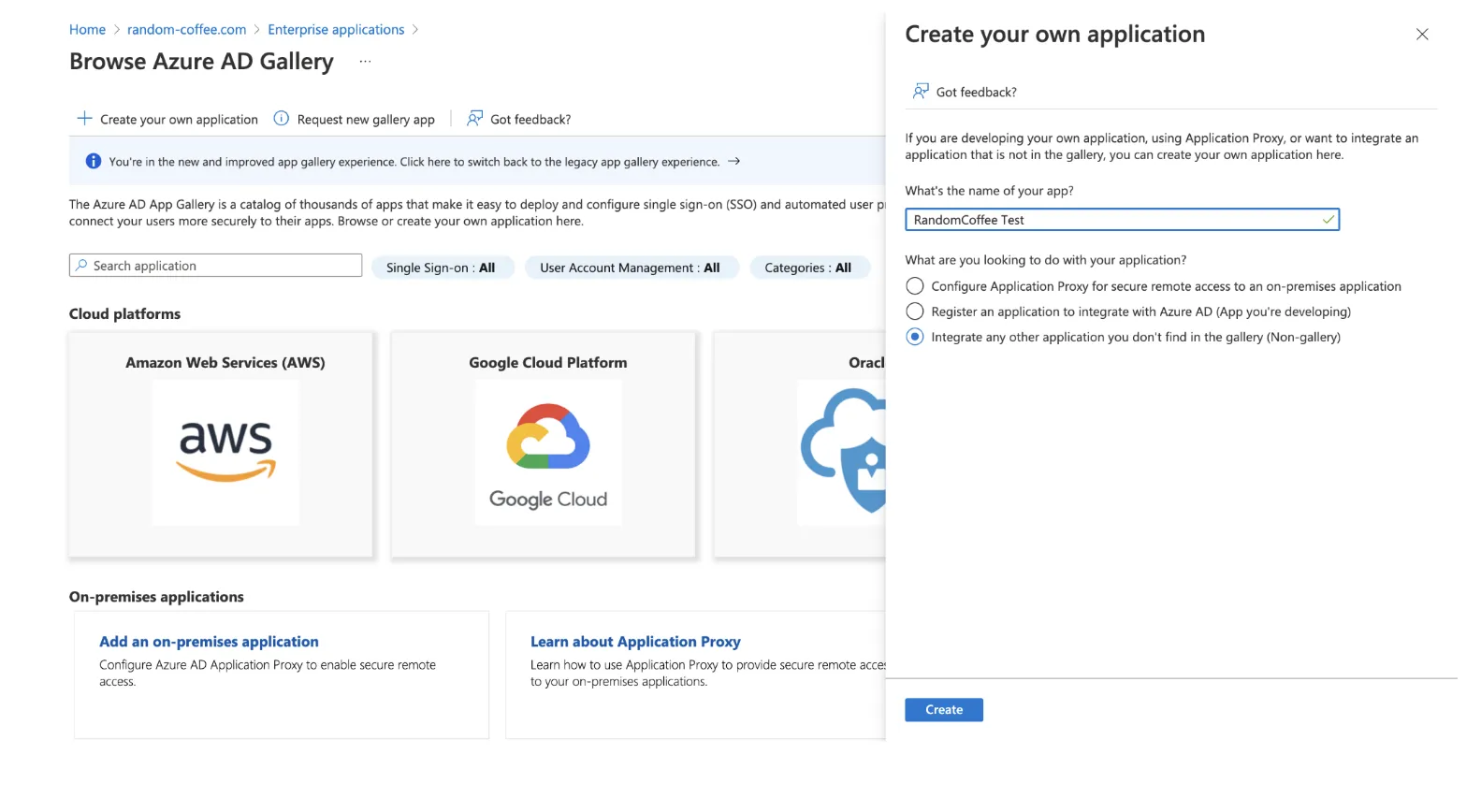
In the Azure portal, go to Microsoft Entra ID (formerly Azure Active Directory) > “Enterprise applications” and click “New application”. Click “Create your own application”, enter a name (for example, “RandomCoffee”) and choose “Integrate any other application you don’t find in the gallery (Non-gallery)”.
-
Open the SSO configuration.
On the application overview page, click “Set up single sign-on”, then choose SAML.
-
Fill in the Basic SAML Configuration.
In section 1, “Basic SAML Configuration”, click “Edit” and copy the values from the RandomCoffee “Service Provider” tab:
Entra ID field Value Identifier (Entity ID) The “Entity ID” from RandomCoffee Reply URL (Assertion Consumer Service URL) The “ACS URL” from RandomCoffee Sign on URL The “Login URL” from RandomCoffee Relay State The “RelayState” from RandomCoffee Click “Save”.
-
Edit the required claim.
In section 2, “Attributes & Claims”, click “Edit”, then click the required claim “Unique User Identifier (Name ID)”. Set the “Source attribute” to
user.mailand check that the “Name identifier format” is “Email address”. Click “Save”. -
Edit the additional claims.
Click each additional claim and rename it as follows, then save:
Value Claim name user.mailemailuser.givennamefirst_nameuser.surnamelast_nameuser.userprincipalnameDelete this claim For example, for
user.mail, enteremailin “Name”, keep the namespace and the “Attribute” source, and check that “Source attribute” isuser.mail.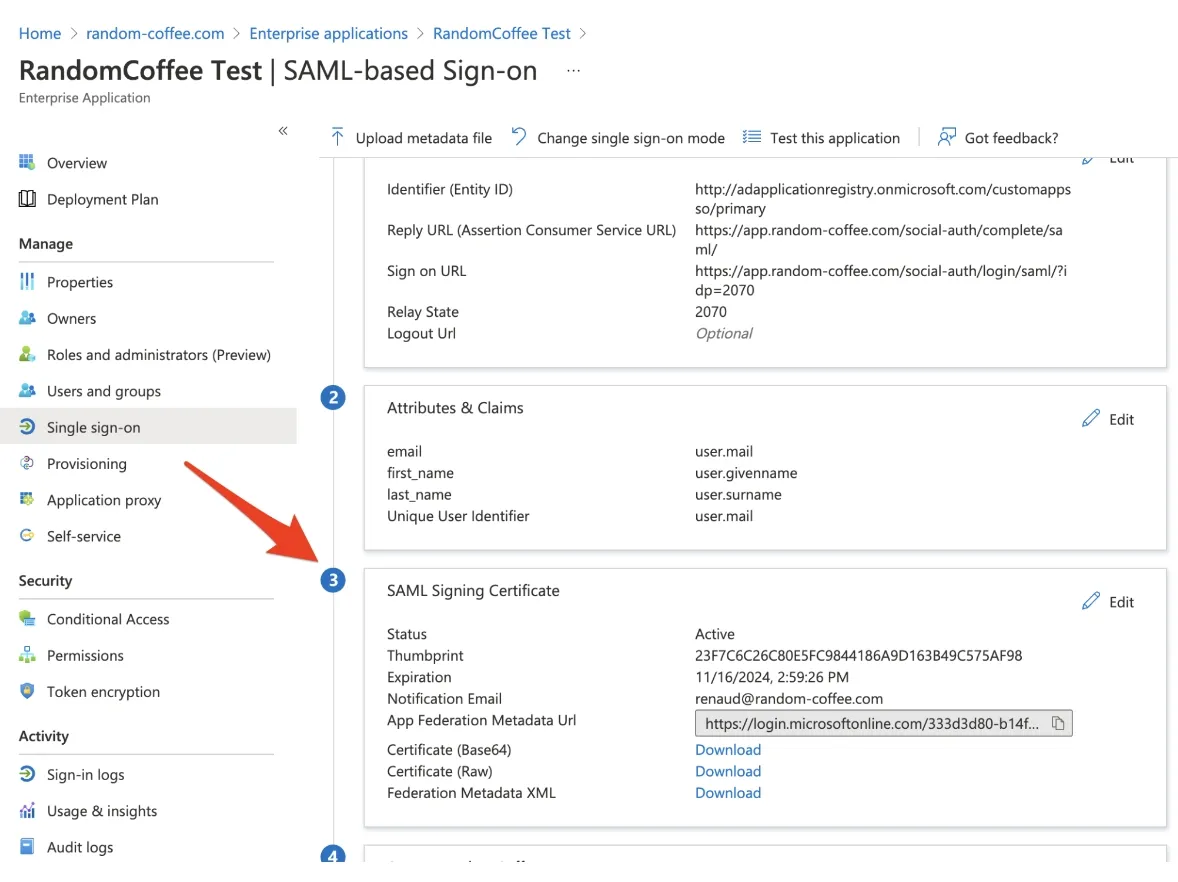
-
Download the metadata file.
In section 3, “SAML Signing Certificate”, download the “Federation Metadata XML” file: you upload it in RandomCoffee in step 3 below.
-
Assign users.
In the application sidebar, click “Users and groups” and assign the users or groups who can sign in to RandomCoffee.
-
Add the application.
In OneLogin, go to “Applications” > “Applications” and click “Add App”.
-
Choose the SAML connector.
Search for “SAML Custom Connector (Advanced)” and select it.
-
Name the application.
Enter a “Display Name” (for example, “RandomCoffee”) and click “Save”.
-
Enter the RandomCoffee details.
Open the “Configuration” tab and fill in the fields with the values from the RandomCoffee “Service Provider” tab:
OneLogin field Value Audience (EntityID) The “Entity ID” from RandomCoffee Recipient The “ACS URL” from RandomCoffee ACS (Consumer) URL Validator ^https:\/\/app.random-coffee.com\/ACS (Consumer) URL The “ACS URL” from RandomCoffee Login URL The “Login URL” from RandomCoffee 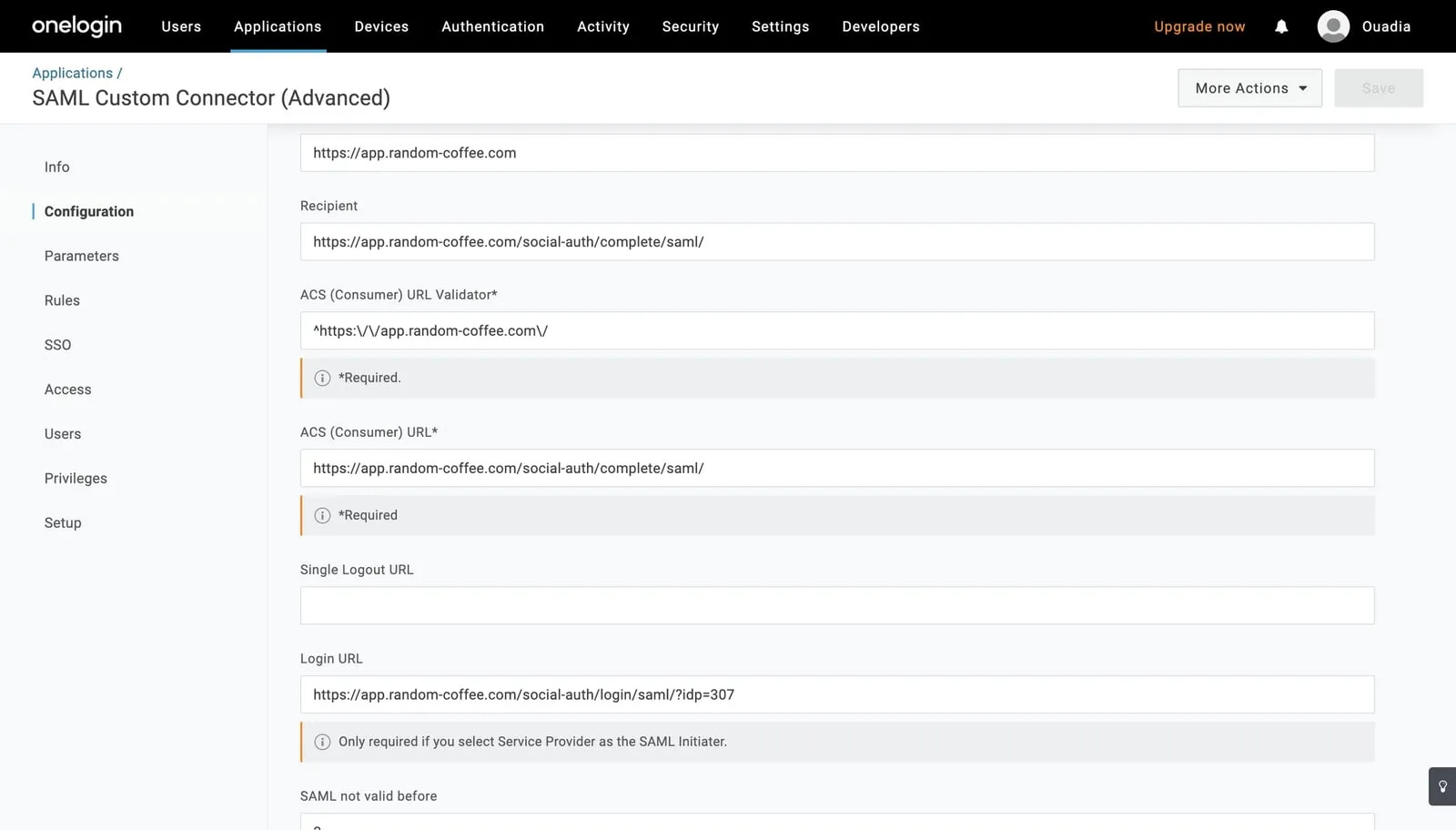
Click “Save”.
-
Add the name attributes.
Open the “Parameters” tab. Check that “NameID value” is “Email”. Click the ”+” button and add a field named
first_name, with “Include in SAML assertion” checked, then click “Save”. Set its value to “First Name” and save.Do the same for
last_name, with the value “Last Name”.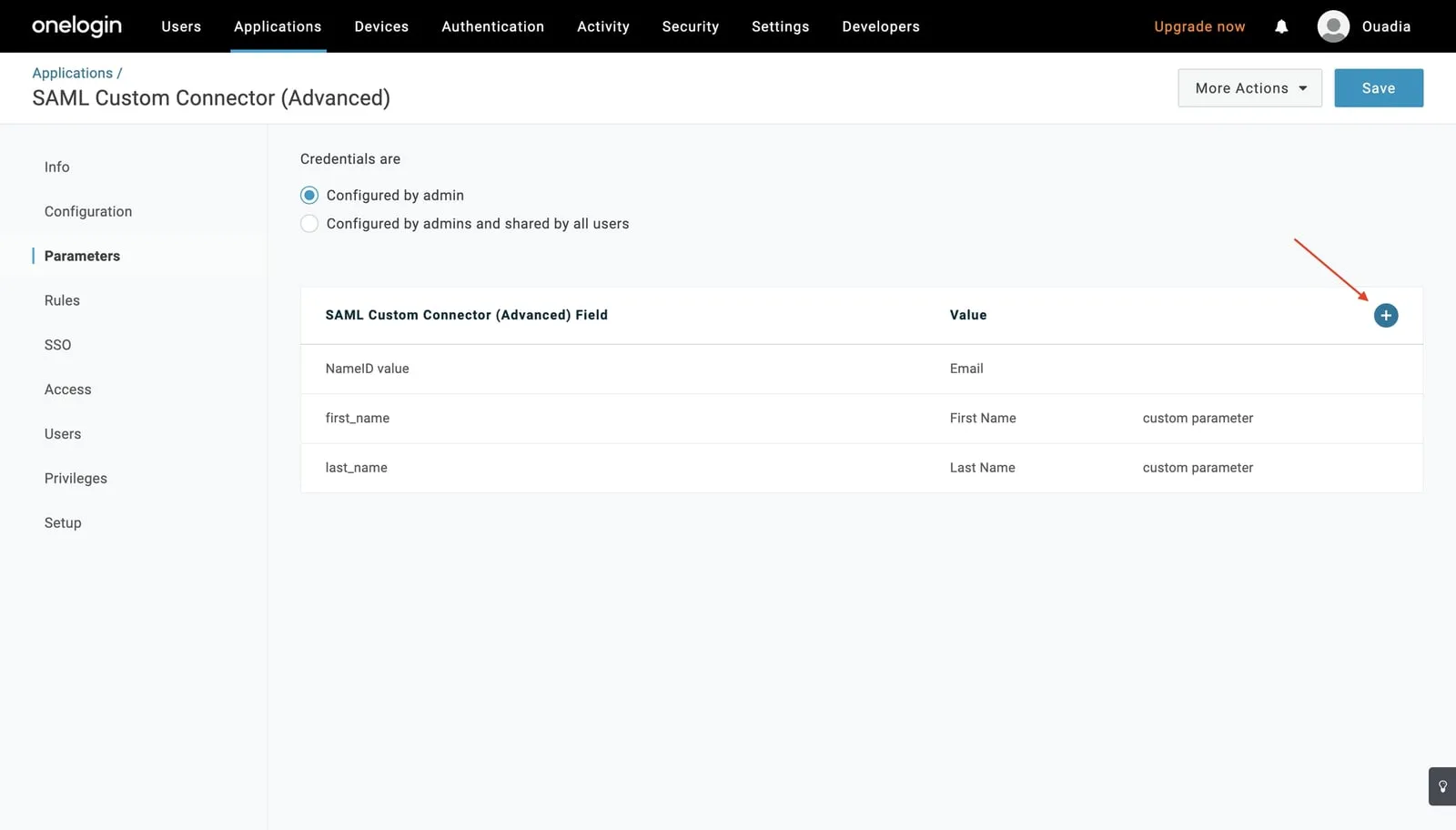
-
Download the metadata file.
Open the “SSO” tab and copy the “Issuer URL”. Paste it in your browser: it downloads the metadata file. You upload it in RandomCoffee in step 3 below.
Step 3: Enter your identity provider details in RandomCoffee
-
Open the “Identity Provider” tab.
Back in the RandomCoffee SSO settings, open the “Identity Provider” tab.
-
Add the identity provider details.
Upload the metadata file from your provider in “Identity Provider Metadata File” with “Upload file”. The “Identity Provider SSO URL”, “Identity Provider Issuer” and “X.509 Certificate” fields fill in automatically.
If you do not have a metadata file (for example with Okta), paste the three values you copied from your provider into these fields.
-
Set the sign-in button and the domains.
- “Display name”: the name of your provider (for example, “Okta”). The RandomCoffee login page shows a “Log in with” button with this name.
- “IdP Domains”: the email domains of your users, separated by commas (for example,
example1.com, example2.com). Users whose email is on one of these domains can sign in with SSO. List every domain your members use: a sign-in started from the RandomCoffee login page with an email on another domain is refused.
-
Choose whether to create accounts automatically.
Check “Automatically add new members using this authentication method to my team.” if people who are not yet RandomCoffee members should be added to your workspace the first time they sign in with SSO. If you leave it unchecked, only existing members can access your workspace with SSO.
-
Save.
Click “Save Authentication”.
To remove the configuration later, open the same tab and click “Delete”.
Step 4: Test the sign-in
Make sure the people who need RandomCoffee are assigned to the application in your identity provider. Then test with your own account:
- From RandomCoffee: go to the login page and enter your email address. A “Log in with” button with your display name appears: click it and sign in with your identity provider.
- From your identity provider: open RandomCoffee from your provider’s portal. This requires the “RelayState” in your provider’s configuration.
Users must sign in to their identity provider with the same email address as the one they entered on the RandomCoffee login page.
When SSO is active, the password reset policy does not apply: passwords are managed by your identity provider.
If you have any question, contact support@random-coffee.com.